
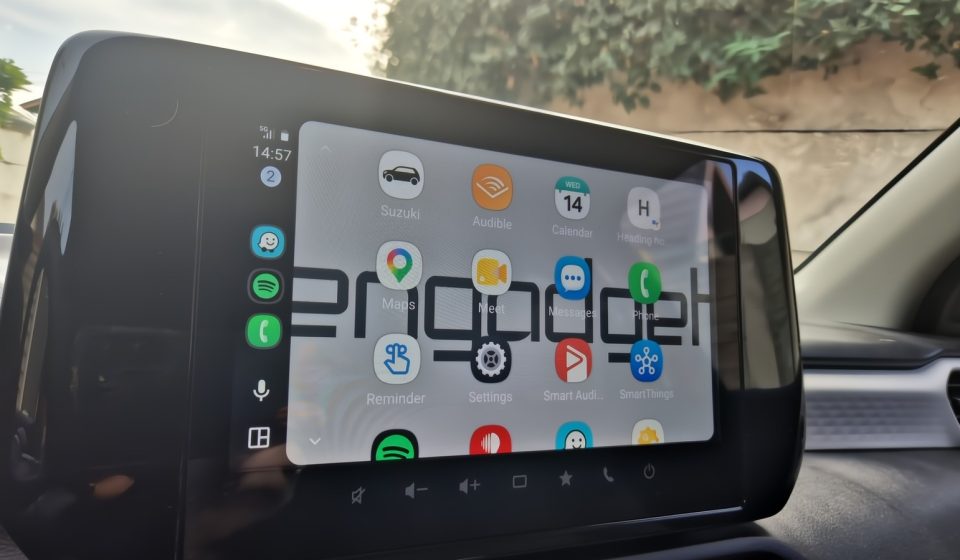

The topic How to change and customize your Android Auto display is drawing steady attention: readers, analysts, and industry watchers are all tracking how the story may unfold in the days ahead.
This is taking place in a fast-moving context — product cycles, platform shifts, and competitive moves can reshape the outlook quickly, so the details below are worth a careful read.
What follows is a clear walkthrough of the main facts and angles you need to make sense of the news.
Most drivers stick with Android Auto’s default setup from the moment they connect their phone, never realizing just how much of the display can be reshaped to fit their habits. From rearranging your layout to building one-tap shortcuts, Android Auto gives you more control over your dashboard than its stock appearance suggests.
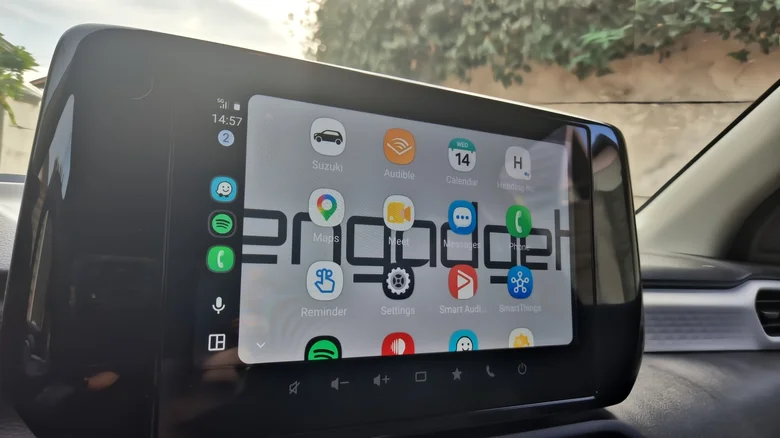
The display of Android Auto can be tailored to match your driving habits perfectly without even having to dip into any hidden menus. With options to rearrange icons, create custom shortcuts and adjust visual elements, it allows you to design a dashboard that feels intuitive and personal. Whether you prioritize navigation, music or communication, every feature can be optimized for seamless access, making your driving experience smoother and more efficient.
Every adjustment takes just a minute or two, but together they add up to a noticeably smoother, safer and more personal driving experience. Whether you’re commuting daily or taking the occasional road trip, these settings are worth exploring.
Let’s start by customizing the launcher. Most of the customization can be done from your phone while just a few tweaks can be done from the car screen. Go to Settings > Connected devices > Android Auto (or just search for Android Auto in Settings) and tap Customize launcher. From there, you can choose which apps to hide and which to show, and you can even drag their names to rearrange the order they show up on the screen. You can, for example, make the Spotify app easier to reach and bump down less used apps like the Reminder app or the Weather app. You should also know that hiding an app only removes it from the car screen, it doesn’t uninstall it from your phone.
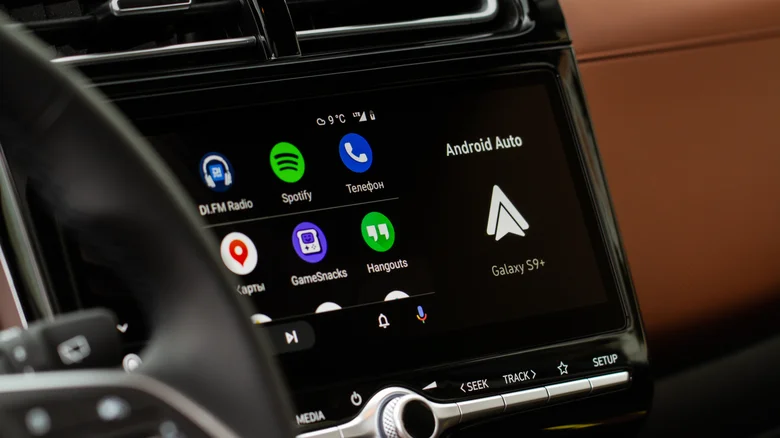
The same Customize launcher page has an option to add a shortcut that calls a contact or triggers an Assistant action. These then appear in the car launcher alongside your apps. One I find super handy is to have Gemini navigate me home, check the ETA and text my husband to tell them I’m on the way and should arrive by a certain time. I can trigger this by pressing the button on the Android Auto launcher or by using a voice command. I’ve also told Gemini my best friend’s name and can just say “Hey Google, call my bestie” and I won’t have to look through contacts at a red light.
Android Auto’s many settings let you make even more decisions on how the screen looks in your car. If you scroll down to Change layout you can choose whether the map or your media player sits closer to the driver. This matters quite a bit if you rely heavily on turn-by-turn navigation, keeping the map within easy glance distance and reducing how long your eyes leave the road. If you prioritize podcasts and playlists on the go, the opposite setup may be preferred. Make sure to test both configurations against your car’s screen size because wider displays handle split layouts better than smaller ones.
If you’re tired of your Android Auto screen looking boring, there’s a way to fix that too. Some years ago, you could pick one of many wallpapers Google had preloaded. Nowadays, you can make your car’s infotainment screen display your phone’s wallpaper. You’ll need to make this choice from your car, though, because you can’t adjust it from your phone. Launch Android Auto, go to Settings and flip the toggle for the Use Phone’s Wallpaper feature. Immediately, the background will mimic that of your phone. It’s not much, but it’s better than a blank space.
The Android Auto settings also make it possible to force day or night mode on your map. By default, the system automatically toggles between them based on ambient light and time of day. You can do this from the Maps section in the Android Auto settings. Also, if you no longer want Android Auto to automatically start media playback when you start driving, you can flip the switch on that feature too (under the Startup section).
None of these fixes take more than a couple of minutes individually, but together they reshape how Android Auto functions. Set up some widgets, adjust the layout, mirror your wallpaper and you get a way more pleasant driving experience.