


The topic How to clear the cache on your Android device is drawing steady attention: readers, analysts, and industry watchers are all tracking how the story may unfold in the days ahead.
This is taking place in a fast-moving context — product cycles, platform shifts, and competitive moves can reshape the outlook quickly, so the details below are worth a careful read.
What follows is a clear walkthrough of the main facts and angles you need to make sense of the news.
Every time you use an app or browse sites online, your Android phone builds up a collection of small files in the background called a cache. That’s how apps and websites load images, scripts and page elements faster the next time you open them, instead of downloading the same data over and over again.
It’s a lot more convenient for the apps and browsers to pull data from storage, of course, but that convenience has a cost as the files start piling up, turning into a storage drain. Over time, this can lead to your phone feeling more sluggish or with you unable to install new apps because you’re running out of space.
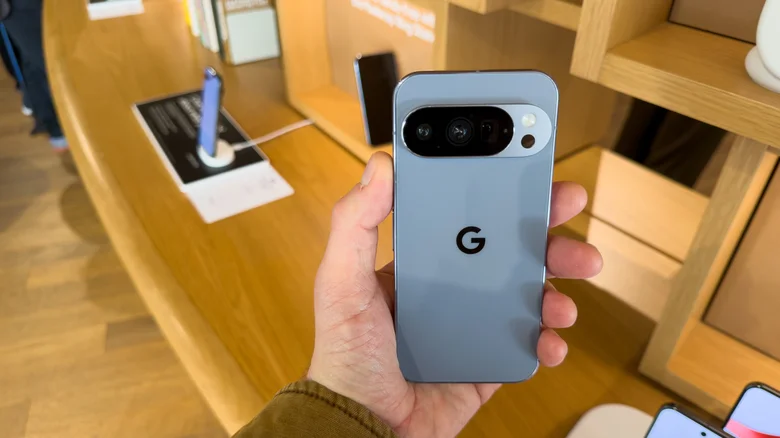
The immediate benefit of clearing your cache is the fact that you’ll free up storage space and improve your device’s performance. Let’s be clear: clearing the cache won’t fix every performance issue your phone has, but it’s a safe and low-effort move that will make your Android phone a bit speedier.
Clearing the cache on your device is one of the safer maintenance tasks you can perform on an Android device. Before getting into it, however, it helps to know exactly what changes and what stays the same. Clearing your cache is always a good idea if your phone is slower than it used to be or apps take longer than usual to open. It’s also a good step to take if you want to clear up some storage space or if specific apps are crashing, freezing or behaving inconsistently.
Once you go through with it, you’ll have quite a bit more storage space since cached images, scripts and temp files will be gone. You might also notice an immediate speed-up of your device or browser, particularly if the cache has grown large. Apps and websites will take slightly longer the first time they load since they have to rebuild the cache from scratch. Realistically, you probably won’t notice that much of a difference.
The most common concern about clearing cache is whether this move will make you lose any data, but thankfully, the answer is no. Not in any way that actually matters, anyway. Clearing cache doesn’t delete your saved passwords, logins, pictures, documents or your game progress because all of these are tied to different type of data, such as cookies or app data. Now, if you also clear cookies alongside the cache, that’s a different situation. Doing so will sign you out of sites that relied on those cookies to keep you logged in. If you leave the cookies untouched, your login sessions on sites stay intact.
There are two main ways to clear cache on your Android device. The first one is through the Chrome browser for web-related data, while the second is through the Settings app for individual apps.
Tap the three dots to the right of the address bar and select Delete browsing data.
Choose a time range. The system sets the default to 15 minutes, but you can pick a longer time window such as the last 24 hours, the last seven days, four weeks, or all time. Selecting All time will clear your entire browsing cache while shorter ranges are useful if you only want to clear recent activity.
In order to select specific data types, go to More options and make sure the box next to Cached images and files is checked, while the others are clear.
Depending on when the specific issue you’re troubleshooting started, it’s important to select the right time range. Picking to delete the cache from the past 24 hours for a problem that started two weeks ago won’t cut it. If you’re going for a full cleanup, picking All time ensures nothing cached gets left behind.
Scroll down and tap on Storage and you’ll see exactly how much space the cache takes up.
If you’re looking for the fastest way to clear your cache on Android overall, the Chrome method handles browser-related issues in under a minute. The Settings route, however, is quicker when you already know which app is causing issues.
Users who don’t want to manually manage this process out of the fear that they’ll “break” something can rely on built-in cleanup tools. Samsung, for instance, offers Device Care, which can spot and clear unnecessary cached files, while Google’s own Files app includes cleanup suggestions flagging junk files and unused cache for removal.