

The topic The Ultimate WhatsApp Privacy Setup Guide: Settings You Should Change in 2026 is drawing steady attention: readers, analysts, and industry watchers are all tracking how the story may unfold in the days ahead.
This is taking place in a fast-moving context — product cycles, platform shifts, and competitive moves can reshape the outlook quickly, so the details below are worth a careful read.
What follows is a clear walkthrough of the main facts and angles you need to make sense of the news.
I don’t need to specifically tell you about WhatsApp’s popularity. It has billions of users worldwide, and it is the go-to messaging app for many people. Thanks to the network effect, most popular messaging apps haven’t replaced WhatsApp, even with better features and privacy.
One of the biggest reasons most people use WhatsApp, besides the fact that their friends or family are already on it, is that it is free to use. And since Meta owns it, free usually comes with a caveat. And that’s your data and how Meta tracks your WhatsApp chats. Although your chats are encrypted and Meta openly says it won’t use your data for advertising, you can talk to a friend on WhatsApp and still see relevant ads on other Meta platforms like Instagram instantly. Don’t you believe me? Just try it once.
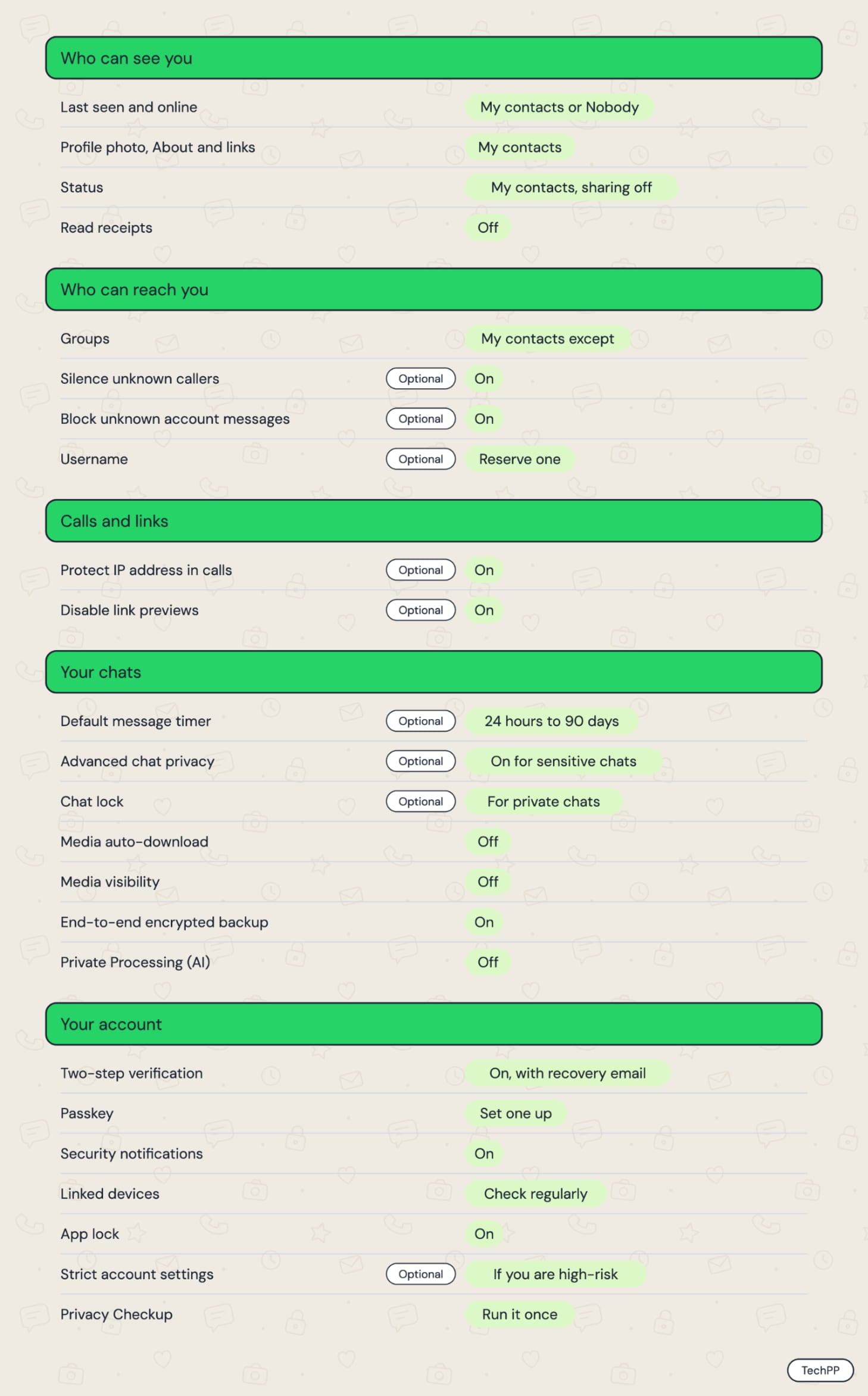
Fortunately, WhatsApp also offers various privacy settings to keep your conversations private, prevent scams, and more. In this ultimate guide, we’ll cover all the privacy settings you need to enable on WhatsApp for maximum privacy. This guide includes all the methods, and I update it frequently and make changes if the features or flow change. Bookmark this page and revisit it anytime to keep your WhatsApp privacy settings up to date.
If you care about your privacy and don’t want your people to know when you were online and when you last used the app, WhatsApp allows you to hide the last seen and online status completely
By default, WhatsApp shows the exact time when you last used the app and shows users when you are actually using the app
While these two features let others know when you use WhatsApp, they can also be a downside, especially if others are expecting an immediate reply when they see you online
Fortunately, WhatsApp lets you disable your last seen and completely hide your status. It also gives you more flexibility by letting you hide these from specific contacts, from your contacts, or disable them entirely for everyone.
Open WhatsApp on your Android or iPhone and tap the You tab in the bottom-right corner, then tap Privacy.
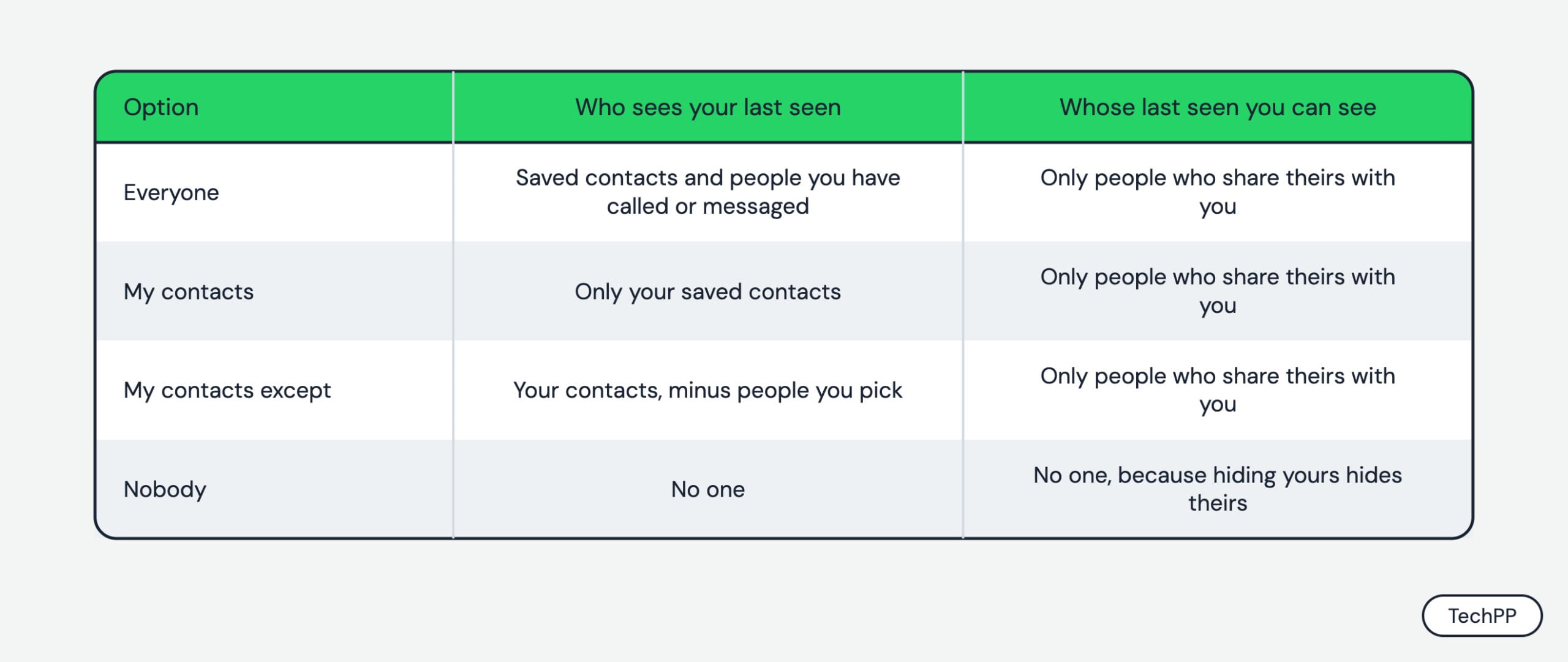
Now scroll down and, under Who can see your personal info, tap Last seen and online. To hide it from everyone, select Nobody. To show it only to my contacts, select My contacts; to show it only to specific contacts, tap My contacts except.
Like Last Seen and online status, WhatsApp also shows your profile picture and About to contacts. This also applies to contacts you have outside your network.
Fortunately, like Last Seen and Online Status, WhatsApp also lets you hide your profile photo and About info from strangers, specific contacts, or no one.
Open WhatsApp and tap on your profile picture in the bottom right corner of the screen, then tap on Privacy, and then tap on the Profile Picture option
Now you can hide your profile picture, About, and links. To hide it from everyone, set it to Nobody.
If you want to share with all your contacts, select My contacts. To share your profile picture only with specific contacts, tap My contacts except and select the contacts you want to hide your profile picture, About, and links from.
WhatsApp’s status feature is slowly turning into Instagram Stories. You can now also reshare statuses on WhatsApp. However, unlike Last Seen, this feature is disabled by default.
If you accidentally enabled it and don’t want others to share your status, you can turn off sharing in the status privacy settings. From there, you can also turn off Facebook Stories and Instagram Stories to prevent your WhatsApp status from being shared on other platforms.
Open WhatsApp and tap on your profile picture, and from here tap on the privacy option
Scroll down, tap Status, then turn off Allow sharing and set your status to be visible only to my contacts. You can also remove specific people by setting up exceptions for contacts, or you can share only with specific contacts. From the bottom, also disable Facebook Stories and Instagram Stories to prevent your status from automatically sharing to Facebook and Instagram Stories.
Even if you hide your online status and last seen on WhatsApp, read receipts can still show blue checkmarks when you read their messages. However, if you don’t want them to know you have read their messages and feel pressured to reply instantly, or if you want better privacy and to balance work and personal WhatsApp chats, you can disable read receipts.
Remember, if you disable it, you also cannot see whether they have read your messages. WhatsApp only shows grey ticks even if you read their messages.
Open WhatsApp and tap on your profile picture. Scroll down and tap Privacy. Scroll down again and turn off Read Receipts.
Another feature that WhatsApp turns on by default is the ability to let your contacts add you to any groups. This includes the number you have temporarily shared with users you don’t know, and once you add it to the group, your number will be shared with everyone in that group, which is a total privacy nightmare.
Fortunately, WhatsApp allows you to stop random people from adding you to groups.
Open WhatsApp and tap on your profile picture, then tap on the privacy option
Scroll down and tap on Groups, then select who can add you to groups. However, WhatsApp doesn’t let you set nobody as an option, but you can still do it by selecting My contacts except and selecting all contacts.
Since WhatsApp primarily requires your phone number to create an account, once your number is exposed, anyone can contact you on WhatsApp. This is why many of us often receive spam business calls.
However, you can silence unknown calls so that you won’t get notified of random spam calls.
To do that, open WhatsApp, tap on your profile picture, and tap on the privacy option
Now scroll down, tap on Calls, and enable the Silence unknown callers option
WhatsApp now supports disappearing messages, which deletes chats from both the sender and receiver after a set time. WhatsApp allows you to enable disappearing messages for individual chats or for the entire WhatsApp for up to 90 days
This is especially useful if you don’t want the other person to save your chats.
Since WhatsApp keeps your messages forever even if you delete your own copy, the other person’s phone still has everything.
When you turn on disappearing messages, WhatsApp also prevents the other person from taking a screenshot and reminds you when they try to save a specific chat.
Open WhatsApp, tap your profile picture, then tap Privacy. From here, tap on Default message timer and select how many days you want to set for WhatsApp. You can select up to 90 days or even 24 hours.
If you want to turn on disappearing messages for individual chats, open the new chat and tap on the three-dot menu on the top right corner of the screen, select disappearing messages, and select the timer
By default, WhatsApp saves all photos you receive to your media gallery, including sensitive and personal ones. Even if you lock WhatsApp, anyone can see the photos you received by opening your phone gallery. This also uses your data to automatically download them and increases your storage usage.
WhatsApp allows you to turn off automatic media download and also lets you stop showing media directly from your photos app
First, you can turn off automatic media downloads. To do that, open WhatsApp and tap your profile picture in the bottom-right corner, then scroll down and tap Storage and data.
From there, scroll down and tap Media auto-download, then select all three: when you are using mobile data, when you are connected to Wi-Fi, and when roaming. Then disable all download options, including photos, audio, video, and documents. This prevents files from auto-downloading on Wi-Fi, mobile data, or while roaming.
Open WhatsApp, tap your profile picture, scroll down, tap Chats, then under Chat settings, disable Media visibility.
WhatsApp also supports two-step verification to prevent your account from getting hacked. While WhatsApp sends a six-digit SMS code for verification, someone with access to that code can log in to your WhatsApp account. However, you can set a second verification method, such as a password, to prevent anyone from accessing your WhatsApp.
Here is how having two-factor authentication adds better security for your WhatsApp account.
First, open your profile picture in the bottom right corner of the screen, tap on account option, and tap on Password
Now create a new password. Tap Create password and create a new password.
Once you add two-factor authentication, remember to add a recovery email. This is especially useful if you lose your network; your email acts as a secondary verification method, where WhatsApp sends a code to your email instead of sending a verification SMS.
WhatsApp also added support for passkeys; if you’re not sure what a passkey is, we have explained it in a detailed guide.
Passkeys use your fingerprint or Face ID for authentication instead of depending on SMS or passwords. Setting up passkeys lets you log in to your WhatsApp account using your device ID, which is unique to you.
But it also comes with downsides: if someone else has registered a Face ID or fingerprint, they can also log in to your WhatsApp account, so keep note of it.
To enable passkeys, open WhatsApp and tap your profile picture in the bottom-right corner, then tap Account. From here, under the Login and Security section, tap on Passkeys. Then follow the on-screen instructions to create a passkey.
Next, enable security notifications on your WhatsApp account so WhatsApp notifies you if someone switches phones, reinstalls WhatsApp, or changes linked devices. This could also mean someone else accessed their WhatsApp account and signed in on a new device. Turn on security notifications and confirm with the other person why the security key changed.
To do that, open WhatsApp on your phone. Tap your profile picture in the bottom-right corner of the screen, then tap Account. Scroll down, tap Security notifications, and turn on the option that says Show security notifications on this device.
WhatsApp lets you link and use your account on multiple devices. However, this could also mean someone could link your account to their device without you knowing. So, if you are suspicious about your account activity, you can check linked devices and sign out of any you don’t recognize.
WhatsApp includes a native app lock feature that lets you lock it with your fingerprint or a pattern. WhatsApp also lets you lock immediately or after a set time. WhatsApp also recently rolled out a new feature to lock WhatsApp Web chats. So, I have made a detailed guide on how to lock WhatsApp on WhatsApp Web. You can watch the video below or follow the detailed steps in this guide.
WhatsApp also lets you lock individual chats, not just the app. This way, you can lock or hide your most private chats. Here is how.
However, Locked Chat uses your device’s biometrics to lock chats. And if you cannot unlock the chat for any reason, you cannot get those messages back. Your only option is to clear the messages and unlock the chat, which you can do by going to Settings > Privacy, tapping Chat Lock, and tapping Clear Chat Lock. To lock the chats, follow the guide below.
Open WhatsApp on your device and, if you want to lock multiple chats on the home screen, select the chats you want to lock, tap the three-dot menu, and tap Lock chat. You can also do it for individual chats right here only.
While disappearing messages remove your chat after a set period, you can turn on Advanced Chat Privacy for chats with sensitive content. This stops the other user from sharing or exporting your chats, and the media used in the chat won’t be saved in that person’s gallery. It also blocks the new Meta AI used in the chat itself.
WhatsApp also supports voice calls. Direct calls can connect your phone to another person’s phone, which can reveal your IP address and, in turn, your location. However, WhatsApp allows you to hide your IP during calls. Here is how.
Open WhatsApp and tap your profile picture in the bottom-right corner of the screen, then tap Privacy. Then scroll down, tap on Advanced, and enable the option that says ” Protect IP address in calls.
WhatsApp also supports link previews, which show a preview of the website content. However, to do that, your phone connects to your website and sends a request from your IP address.
So it can easily reveal your phone’s IP address to the website, along with your location. You can also turn off link previews, which prevents those fancy images websites use for spam calls.
Open WhatsApp and tap your profile picture in the bottom-right corner of the screen. Scroll down and tap on Privacy. From here, scroll down again, tap Advanced, and enable Disable link previews.
WhatsApp also introduced a new feature that blocks messages from unknown accounts. It blocks unknown accounts that send you high volumes of messages, which is especially useful if you receive frequent spam texts or your WhatsApp is being bombed with multiple messages.
Open WhatsApp and tap your profile picture in the bottom-right corner of the screen. Tap Privacy, then tap Advanced again, and turn on the option that says Block unknown account messages.
WhatsApp relies on Google Drive for your WhatsApp backup and iCloud on iPhone. However, by default, your chat backup isn’t encrypted.
You can turn on end-to-end encrypted backup with a passkey, password, or 64-digit key so third-party servers, including Google, can’t read your backup.
Open WhatsApp and tap your profile picture in the bottom-right corner of the screen, then tap Chats. From here, scroll down and tap Chat backup, then scroll down again and tap End-to-end encrypted backup.
Here, you can turn it on and then use your passkey. Remember, you’ll need this passkey whenever you back up your WhatsApp with this data. You can also use a password or a 64-digit key.
Like any other app, Meta also offers AI features that let you summarise and read messages and also chat with Meta AI. However, because these AI chatbots can’t use your data publicly, Meta uses Private Processing features, which it says process your data privately for those AI features.
However, both of the AI features, including Private Processing features and web search, where Meta AI can search the web based on your queries, are turned off by default. If you turn them on, you can turn them off by default to prevent Meta AI from using your data, even though it is processed privately.
Recently, WhatsApp introduced usernames on the platform, so instead of your phone number, you can create and share a username and let others contact you through it.
However, your phone number still verifies your account, but for better privacy, you don’t need to reveal it when sharing your WhatsApp account with others. You can also restrict who can message you using your username through a secondary verification method. I have covered in detail how to find your WhatsApp username.
If you are a journalist, activist, or public figure, Meta offers Strict Account Settings to help protect your account’s security and privacy. Here is a clear breakdown of the difference between standard settings and Strict Account Settings and how to enable strict account settings for your WhatsApp account.
WhatsApp privacy settings can be confusing for beginners since the platform is used by people of all ages. However, WhatsApp also offers a built-in Privacy Checkup tool that provides a step-by-step process to help you enhance your WhatsApp account’s privacy.
It includes details such as choosing who can contact you, controlling your personal info, the ability to add more privacy to your chats, adding more protection to your account, and much more
This privacy checkup offers detailed, step-by-step instructions to help you enable important privacy settings. If you find any steps in this guide confusing, you can use this tool.
Those are the 23 plus WhatsApp privacy settings you should enable on your WhatsApp for better privacy. Whether you want to hide your last seen and online status from others, reduce spam calls, implement strict account settings, prevent others from sharing your WhatsApp chats, or enable your username without revealing your phone number. To make it easy, I have included a detailed step-by-step process. Even if you are a beginner, you can easily follow these steps and enhance your privacy on WhatsApp. Moreover, WhatsApp has been rolling out plenty of new features lately. We also update this guide if WhatsApp adds new privacy features or changes the current settings.
If you have any issues while accessing these settings, comment below. I am happy to help you.