

The topic New Windows 11 Updates: 8 Features That Improve Daily Workflow is drawing steady attention: readers, analysts, and industry watchers are all tracking how the story may unfold in the days ahead.
This is taking place in a fast-moving context — product cycles, platform shifts, and competitive moves can reshape the outlook quickly, so the details below are worth a careful read.
What follows is a clear walkthrough of the main facts and angles you need to make sense of the news.
I can’t count how many times I’ve had to drag the window to full size, squint at a bright screen, or open Settings just to turn on dark mode. Each one takes a few seconds, but you repeat them all day. Thankfully, Windows 11 is about to trim a lot of that. Microsoft seems to have noticed, and over the past few months, it has been stacking up small but genuinely useful changes for Windows 11. The best part is that all these features are coming with future updates.
With new optimized features, Windows now feels up to 20% more responsive, with the gains showing up in Start, File Explorer, Search, and more. With the latest Windows Insider release notes, you are in for a eight-feature treat you should know about. One heads-up before we start: not everything is available to everyone yet. Many of these are still being tested in the Windows Insider Experimental channel, so I’ll tell you where each one stands.
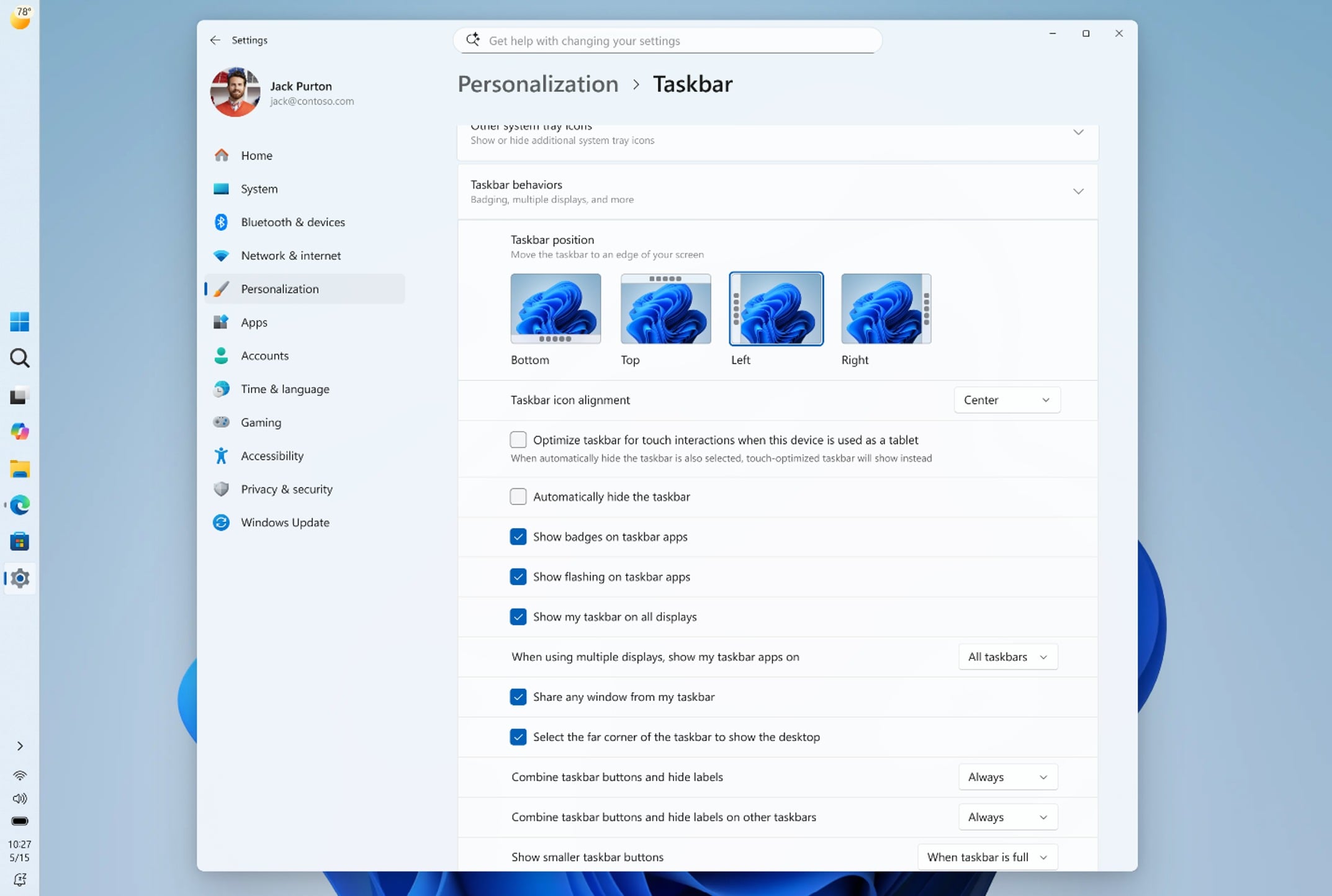
For years, the Windows 11 taskbar has been stuck to the bottom of the screen. There was no way to change its position. That is finally changing. Microsoft’s Windows Insider blog confirms that, with the current insider update, users can now park the taskbar on the top, bottom, left, or right edge. Here’s what you can do:
Moving the taskbar to the side can give you vertical space, handy for developers who want to see more code. To tweak the taskbar, you need to navigate to Settings > Personalization > Taskbar > Taskbar behaviors. You can also choose to make the taskbar smaller, optimal for small screens. Simply choose the “Show smaller taskbar” option to Always, and you get smaller icons and a shorter bar. No restart or sign-out needed.
Things may not work perfectly, though. Auto-hide and the tablet-optimized taskbar don’t work in the new positions, touch gestures are still in progress, and the search box shows up as a plain search icon for now. Aside from this, the Recommended section is getting renamed to Recent, and you can hide your name and profile picture. There are also separate toggles to show or hide Pinned, Recent, and All.
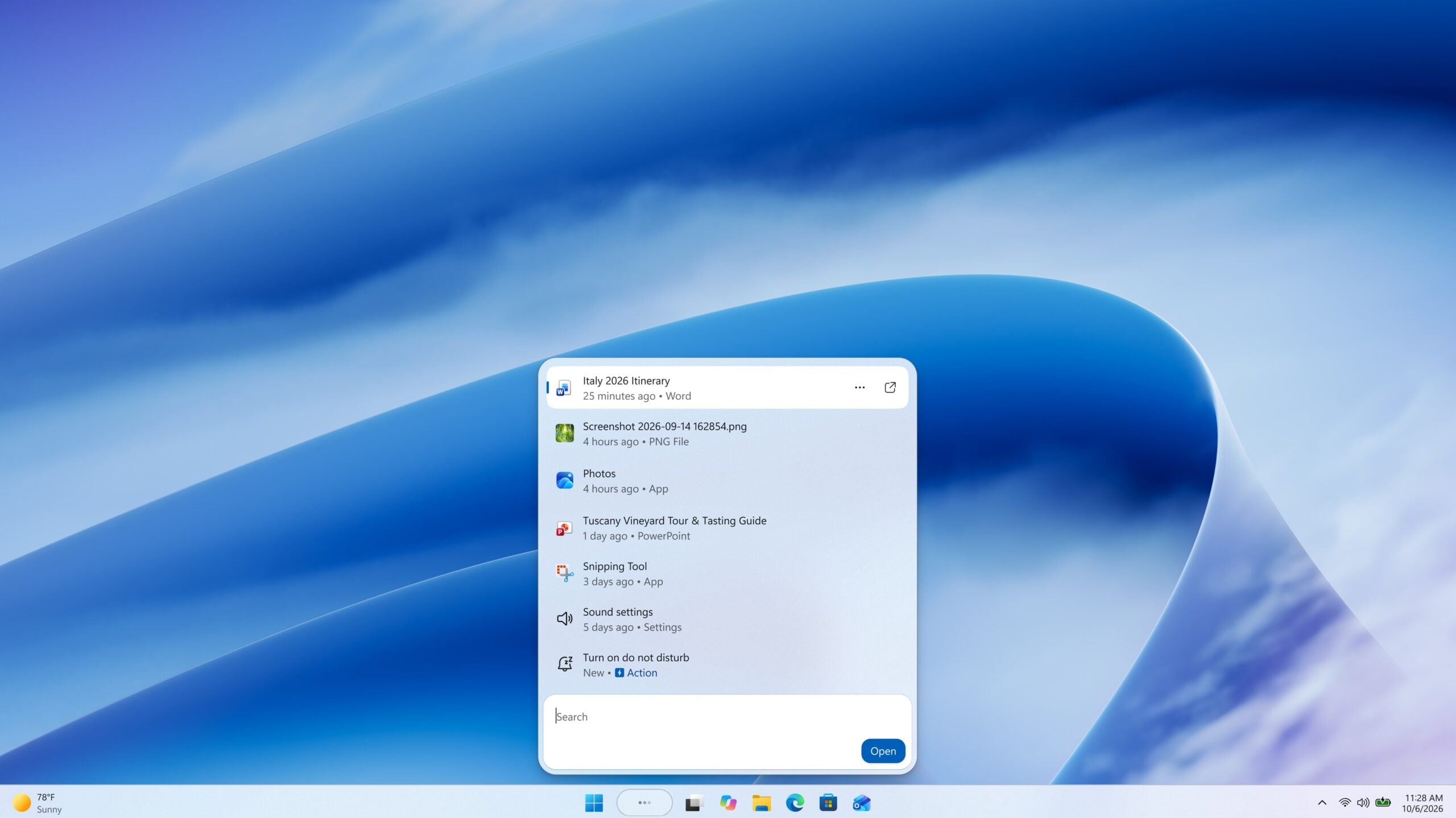
This one might be the biggest everyday upgrade. Microsoft has confirmed that a new search built on WinUI 3 is incoming and says it makes it faster and lighter on resources. Windows Search also understands you better. Typos and synonyms are matched more intelligently, so a sloppy query is more likely to give you the right result.
The main highlight is inline actions. So, instead of finding a setting and then opening Settings to change it, you can enable/disable a setting from search. This means you’ll be able to:
Phone actions are coming soon too, allowing you to quickly do things like sending a text through a Phone Link-connected device. Search is soon expected to get inline previews of files, richer file details, web answers (think weather or “how tall is the Eiffel Tower”) and filters. This new experience is also expected to arrive for the Start menu, but only next year. Other features are expected for broader availability later this year.
This is not a big update, per se, but if you want to know what the battery level is on your wireless mouse? Your headphones? Your laptop? Or any other connected device, usually you’d have to hunt through different menus for each answer.
With the Windows 11 26340.9616 release, Microsoft introduced a Battery Status widget that shows the battery levels of your PC and your peripheral devices in one view. To get it, you need to open the Widgets board > Add widgets > Battery Status. It is rolling out to Insiders on newer builds. Widgets are also getting lighter. Microsoft says on PCs with 8GB of memory or less, Widgets now load only when you open them. This helps free up more than 200 MB for your apps.
Microsoft seems to be making sure that your phone and PC act like one setup. With the upcoming updates, Windows 11 could allow users to reply to messages, answer calls, and open phone apps without picking up their phone. Here are all the features, reportedly available in the insider build:
One thing to note is that this requires a compatible Android phone or iPhone, and features vary by platform. The rollout date, similar to other features, isn’t confirmed, but it may arrive by next year.
Until now, regular desktop apps were controlled by a single device-wide switch for things like your camera, microphone, and location. That was not something one would want, especially when you want to have granular controls. according to the data the 28120.3302 release notes, Insiders can now allow or deny access for each desktop app individually. For that, you need to head to Settings > Privacy & security, then open Camera, Microphone, or Location.
The rollout is gentle on your existing setup. All the apps that were granted access will continue to keep it, and apps that were denied stay denied. Nothing will reset. Apps that haven’t asked yet will prompt you the first time they request access.
according to the data Microsoft, with the latest insider builds, it has introduced faster Windows Hello sign-ins, made them easier, and more reliable, with improvements to both face and fingerprint recognition. There’s also a very practical new trick for face sign-in. If you’ve ever tried to unlock your laptop in a dim room, you know the struggle. You have to turn on the light so that your face is detected correctly.
The 26340.9750 release notes say Windows Hello facial recognition can temporarily brighten your screen to help you sign in when the lighting is poor. To use it, go to Settings > Accounts > Sign-in options > Facial recognition (Windows Hello) and turn on Automatically adjust screen brightness during face recognition. This one is currently in the Experimental channel.
Although Microsoft doesn’t use the name “anti-glare mode,” that’s exactly what the newly added option does. Notably, it’s a contrast theme toggle inside Magnifier, as mentioned in the 28120.3302 release notes. While many people use Night light or color inversion to calm a bright screen, but the downside of using is that it flips everything, including photos, charts, and videos.
With the new toggle, it will recolor the interface only. This way, your images keep their real colors. The dark theme is the default, and you can pick a different contrast theme under Settings > Accessibility > Magnifier. You still get the “Color inversion” option, and it isn’t going anywhere if you prefer it.
If you just want a softer tint, Windows 11 is also testing a “Screen Tint,” which lets you pick a color overlay and adjust its strength.
You might already be using third-party software for file previews inside File Explorer, but wait. Microsoft is also cooking the same feature, and it may arrive very soon for Windows 11. A couple of preview-related changes are incoming:
If you work with fonts, that second one saves a few steps. For everyone else, it’s a polish update, and it’s good to see File Explorer getting some attention.
Unfortunately, these features aren’t available for everyone, for now. Most of the features above live in Windows Insider builds. If you’re comfortable with a few bugs, you can join through Settings > Windows Update > Windows Insider Program. You will see most features in builds 26340.9616, 26340.9750 and 28120.3302 in the Experimental channels.
These builds can be unstable, and features in them might change, be removed, or never ship. Many are also rolled out gradually to a subset of Insiders first, so you may not see everything right away. For those who are using Windows 11 on their primary device, you should probably wait.