


The topic ASUS Jelly75 KD201 Review: A Stylish Mechanical Keyboard for Everyday Use is drawing steady attention: readers, analysts, and industry watchers are all tracking how the story may unfold in the days ahead.
This is taking place in a fast-moving context — product cycles, platform shifts, and competitive moves can reshape the outlook quickly, so the details below are worth a careful read.
What follows is a clear walkthrough of the main facts and angles you need to make sense of the news.
ASUS has a wide range of product categories, and its mechanical keyboards are quite popular among gamers.
ASUS also offers standard mechanical keyboards for regular users. The company recently sent us its recently announced Jelly75 keyboard for review. It features a 75% layout, a unique translucent design, and multi-device connectivity. The keyboard also comes with a slightly higher price tag of Rs 7,999 (US $129.99)
I have been using this keyboard for the past several days, and in this review, you will learn everything about the keyboard, including the good and the bad things, and also learn if this Jelly75 keyboard is worth the price for what it offers.
You get a fairly simple package when you unbox the ASUS Jelly75 KD201. Inside, you find the keyboard, a USB-A to USB-C cable, a 2.4GHz wireless receiver, a quick start guide, and warranty documentation.
However, ASUS doesn’t provide a keycap puller or even a switch puller out of the box.
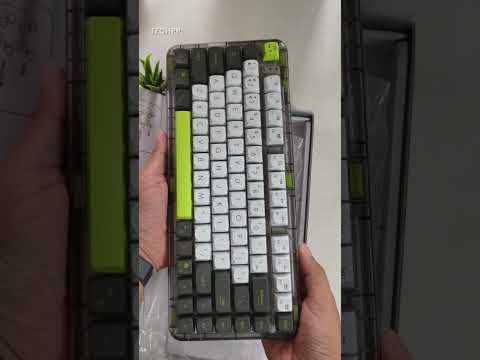
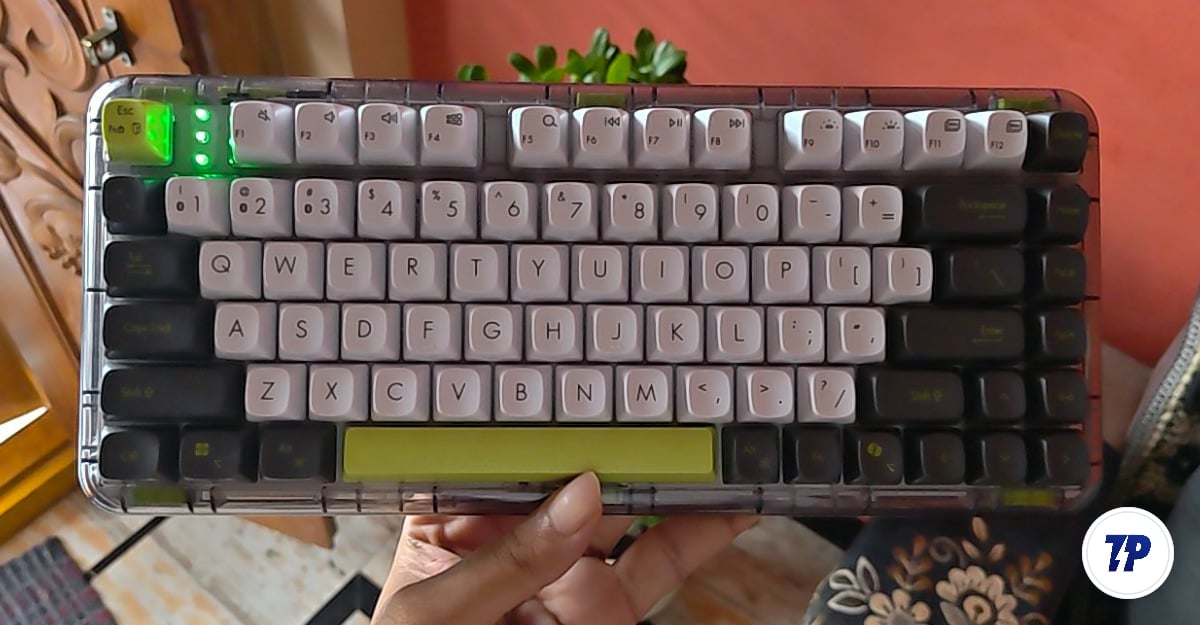
The ASUS Jelly75 keyboard is available in two colors: Volt Green and Orange Meadow. I received the Volt Green variant of the Jelly75, which comes with a translucent chassis and a combination of white, black, and mint green keys. This color combination makes it very attractive for a vibrant and unique desktop setup.
If you don’t like contrasting looks, the Orange Meadow color variant, which offers muted colors and a retro-looking design, is the best choice, which I personally prefer.
But the Volt Green variant also looks good in person and stands out more than the regular black-and-white finishes on most mechanical keyboards.
The standout feature on both variants is the translucent design, so you can see parts of the internal keyboard structure through the casing.
However, the body and keys are made of polycarbonate, but it’s solidly built, and the weight adds extra rigidity.
The steel plate inside the keyboard adds to its weight, bringing it to about 1.19 kg.
While the weight helps the keyboard stay stable during typing, it can be inconvenient if you plan to carry it often.
Since the ASUS Jelly75 keyboard uses a 75% layout, it measures about 326.2 x 142.1 x 39.5 mm, which takes up less space than traditional full-size keypads but more than smaller percentage keypads.
If you are not familiar with keyboard percentages, here is a detailed visual guide we created to help you understand different keyboard layouts.
The keys are densely packed together, and there is not much space between them; also, there is no gap between functional keys and the regular keys, especially around the arrow key cluster, where, until you get used to this layout, there is a high chance that you can accidentally mispress the other keys.
Also, the keyboard doesn’t have any knobs, which would have been a nice addition for direct volume control. Additionally, the Caps Lock key doesn’t come with any light indication to show it’s active.
The rubber pads on the bottom help it stay stable and in place without sliding on a smooth desk surface.
The keyboard also comes with adjustable kickstands that let you set three typing-angle positions.
While the design is attractive, the translucent, lighter-colored keycaps make dirt more visible. It also supports a wireless receiver, but the keypad doesn’t have a dedicated compartment to store it, which is inconvenient, especially if you plan to carry it between workspaces. It won’t be much of a concern if you plan to connect it via Bluetooth, but it’s something you should know.
Continuing with the design, you will find the ASUS logo on the bottom right, a toggle to switch between connection types on the top, and a USB-C charging port on the top left.
The ASUS Jelly75 KD201 uses a 75% keyboard layout, which is a sweet spot between portability and functionality.
Unlike smaller 60% or 65% layouts, it includes a function row at the top and navigation keys on the right.
However, it doesn’t include a separate number pad, which full-size keyboards often have.
This compact layout has all essential keys and doesn’t miss anything, especially if you are coming from notebooks or a Mac.
This layout works for writing, programming, office work, and even standard gaming.
Although you get a dedicated number row below the function keys, a dedicated number pad is still more convenient, especially if your work involves entering numbers regularly.
However, the keys are densely packed, with negligible gaps between them.
ASUS has also included a dedicated Copilot key near the arrow key cluster, which could accidentally launch Windows Copilot, especially until you get used to this densely packed layout.
In terms of key design, ASUS used tall, squarish-rounded keycaps instead of the flatter options found on many keyboards.
While this makes them look unique, it may take time to get used to, especially if you are switching from a MacBook or another low-profile keyboard.
Since these keys are taller, I recommend a separate wrist rest, especially if you plan to use the keyboard lying flat.
Typing experience is one of the most important things to consider when buying a mechanical keyboard, since you spend several hours every day writing, coding, or working on documents.
The ASUS Jelly75 comes with linear mechanical switches that offer 4mm of total key travel.
However, you won’t get tactile feedback when you press the keys. Unlike tactile switches, which have a noticeable bump when pressed, the Jelly75’s linear mechanism presses the keys gently, creating a smooth typing experience.
I personally prefer tactile feedback because I am used to my MacBook keyboard, but many also prefer smooth switches for longer typing sessions.
ASUS also rates the switches at 50 million keystrokes, which should last longer with regular use.
The keyboard also offers a gasket-mounted structure. ASUS calls it Uni-cushion technologies, where it uses cushioning between the internal keyboard layout assembly and the outer body to help absorb vibrations.
This is especially useful if you press the keys harder, as the chassis absorbs vibration and stays steady overall.
The keycaps have a rigid feel. You won’t get rattling, wobbling, or uneven keypresses even on the larger keys like the spacebar.
As a mechanical keyboard, the ASUS Jelly75 offers hot-swappable switches, so you can remove and replace individual switches without soldering.
If you prefer tactile switches, you can also replace linear switches with tactile options.
However, ASUS doesn’t include a switch puller in the box, so you will need to buy it separately if you plan to swap the keys.
The ASUS Jelly75 keyboard comes with a white backlight instead of RGB backlighting. It keeps the keyboard looking cleaner.
You can adjust the white backlighting to four brightness levels using the dedicated keys on your keyboard, including Fn + F9 shortcuts.
You can also turn off the backlight completely, which can help extend battery life further.
However, the backlight illuminates the area around the keys and doesn’t illuminate the letters and symbols printed on the keys; instead, it glows around them.
This won’t be an issue if you are already used to this keyboard layout and type without looking at the keyboard, but if you look at the keys while typing, the lighting may not be as helpful in low light.
Another big advantage of the ASUS Jelly75 KD201 keyboard is its connectivity. If you use multiple devices, such as a Windows PC, MacBook, or iPad, you can connect this keyboard to all of them wirelessly and switch between them easily.
The Jelly75 keyboard supports three connectivity options: Bluetooth, 2.4GHz wireless, and a wired USB connection, and it can connect up to five devices using all three connection types.
The Jelly75 keyboard supports Bluetooth 3.0 and 5.0, and it can remember up to three Bluetooth devices.
To pair your devices, switch the keyboard to Bluetooth mode and hold Fn + 1, 2, or 3 for more than three seconds.
Once paired, you can easily switch between devices using the corresponding shortcuts.
You can pair up to three devices via Bluetooth. It also supports a 2.4 GHz wireless connection using the included USB receiver. ASUS says the wireless range is about 10 meters.
You can also connect the keyboard using the USB cable provided in the box.
The USB cable is long and suitable for any desktop layout, and its braided design lets you fold it easily and keeps it tngle-free.
However, as I said before, the main limitation is that it lacks a dedicated compartment for storing the 2.4GHz receiver if you plan to carry the keyboard between workplaces.
You won’t get much customization on the ASUS Jelly75 keyboard. Instead, ASUS kept it simple with a plug-and-play design.
It supports dedicated shortcuts to switch between Windows and MacBook layouts and offers several function-key shortcuts.
You can use Fn + F1, F2, and F3 to mute or adjust the volume, and F6-F8 to control music playback. It also includes shortcuts for switching between applications, searching, and launching Launchpad on macOS and Windows Search and Spotlight on macOS.
The keyboard also includes a dedicated Microsoft Copilot key, which lets you launch Copilot directly from your keyboard.
However, one noticeable downside is that, unlike other mechanical keyboards, it doesn’t include dedicated software for advanced key-mapping customization, so you can’t set custom shortcuts.
The ASUS Jelly75 KD201 has a 4000mAh rechargeable battery. ASUS rates the keyboard as lasting up to 8500 hours on a single charge with the backlight off, which translates to roughly 354 days.
It can last days without needing to charge. I used this keyboard with the backlight on throughout the entire two-week review period. I didn’t have to charge it once.
Regarding charging, the Jelly75 uses a USB-C port and includes a USB-A to USB-C cable in the box. It supports up to 5W charging. You can also charge the keyboard by connecting it directly to your device. It also includes a useful wired USB mode, which can be convenient if you suddenly run out of battery.
The keyboard uses battery light indicators to show the remaining battery. When the battery level drops to 20%, the status light slowly flashes red and reminds you to charge it. While charging, the indicator flashes, and when it’s fully charged, the light turns solid white. You can also check the remaining battery life in the Bluetooth settings for the connected device.
Along with the Jelly75 keyboard, ASUS also sent the MD105 wireless mouse, which pairs well with it. Interestingly, it comes in two color variants: Volt Green, which perfectly matches your keyboard if you picked up the Volt Green variant, and Milky White, which suits the Orange variant.
In terms of design, the MD105 mouse looks like a conventional mouse with a slightly wider body, and it comes with a dedicated thumb rest designed for right-hand users that offers great support, especially if you are a creator and plan to use the mouse for several hours a day.
It feels very light and weighs just 66 grams without a battery, and although it’s slightly wider, it isn’t as travel-friendly as other compact mice.
One feature I particularly like is the silent-click mechanism, which reduces clicking noise. This can be especially useful in shared offices and libraries, or when you’re working late at night.
The MD105 uses an optical sensor with three adjustable DPI settings, including 1200, 1600, and 2400. You can switch between them using the DPI button. Lower DPI settings offer more controlled cursor movement, while higher settings let you move the cursor faster.
For my big hands, the mouse feels perfectly compact, and my right finger rests comfortably on the support, making it comfortable to use.
Since it is lightweight, it is also quickly responsive and easy to move. For connectivity, the MD105 supports Bluetooth 5.0 and also offers 2.4 GHz wireless through the included USB receiver.
You can pair up to three devices: two via Bluetooth and one via the wireless receiver.
It also offers a wireless compartment in the mouse. If you are planning to use it with Bluetooth, you can safely store the wireless receiver in the compartment.
Since it supports multiple devices like the ASUS Jelly75 keyboard, it is also useful for switching between Windows and Mac computers.
A few months ago, I switched to a mouse with a built-in battery, but the MD105 comes with a single AA battery included in the box.
You need to replace it whenever you want, without waiting for the mouse to recharge. However, I prefer a rechargeable mouse, as mine also comes with a battery level indicator, so I can charge it.
If you can, this MD105 mouse suggests you need to keep an AA battery on hand in case it suddenly runs out of battery
The ASUS MD105 mouse is priced at Rs 1,699, which is a good value considering the ergonomics, comfort, and portability it offers.
It also has dedicated left-side switches for extra shortcuts, and its quiet operation, adjustable sensitivity, and multi-device connectivity make it a great buy if you are planning to get it alongside the Jelly75 keyboard.
At Rs 8,999 (US$129.99), ASUS faces stiff competition from brands like AULA, Royal Kludge, and Keychron, which offer feature-packed mechanical keyboards with hot-swappable switches, RGB lighting, and dedicated volume knobs.
Some keyboards, like Royal Kludge, also offer a small dedicated display that shows useful information such as battery status and connection mode.
However, ASUS Jelly75 bets on its design, with colorful, translucent, rounded keycaps that make it one of the most distinctive-looking keyboards.
The gasket-mounted construction, linear switches, and multi-device connectivity also make it a great everyday companion with a simple plug-and-play device for a productive and attractive-looking desktop setup. However, if you want a fully customizable keyboard experience with a dedicated knob and customizable software, this might be a limitation.
The ASUS Jelly75 mechanical keyboard is a great pick if you want a distinctive design, prefer linear switches, and regularly switch between multiple devices. However, if features and customizability are your priority, this isn’t a compelling option.