

The topic How to Set Up and Run AI Models Locally on Android, iPhone, Mac, and Windows is drawing steady attention: readers, analysts, and industry watchers are all tracking how the story may unfold in the days ahead.
This is taking place in a fast-moving context — product cycles, platform shifts, and competitive moves can reshape the outlook quickly, so the details below are worth a careful read.
What follows is a clear walkthrough of the main facts and angles you need to make sense of the news.
While many think AI is a bubble that is going to burst one day, it might be true, or it might not be at all. Only time will tell. But we should all accept that AI is fundamentally changing how we interact with our devices and do work.
For me, my life revolves around AI: I hand off some of my work to it and do things that once weren’t possible.
AI models are rapidly evolving. If you don’t know what an AI model is, it powers the apps and interfaces you interact with. For instance, the ChatGPT app uses GPT models, and the Claude app is powered by Claude models, which run behind the scenes.
While AI is fundamentally changing how we interact with devices and making work easier, handing your sensitive data to it has remained a major privacy concern.But thanks to rapid AI model development, many capable, powerful AI models enough to run locally on your device, without your data leaving your device
Companies like Google and Meta offer free AI models that can run locally on most consumer devices, including your mobile phone. Apps like Google’s AI Edge Gallery and PocketPal AI also make it easy to discover and run AI models locally without technical expertise.
If you have a capable computer with decent RAM, you can also run AI models locally to use them for writing your email, summarising PDFs, data analysis, coding, using their vision capabilities, and much more.
However, setting up an AI model locally involves downloading the app, choosing the model yourself, and understanding its capabilities first.
To help you out, I have created this detailed, comprehensive guide to set up and run local AI models on your device on Android, iPhone, Mac, or even on Windows.
I wrote this guide with beginners in mind, so every step is comprehensive and easy to follow. If you have questions, comment below. I am happy to help you. Most of these models can run locally on many consumer applications, but before that, don’t forget to check our prerequisites because that’s where your journey starts.
Technically, a model loads into your RAM to run. As a general rule of thumb, a model needs about as much free RAM as its download size.
So, more RAM leaves room to run large AI models. A minimum of 6 GB of RAM is required to run decent, capable AI models locally on your device
Similarly, you need enough storage to download and store models locally. A model can generally range from 2 GB to 20 GB or even more, depending on its size and capabilities.
Finally, you need an internet connection and enough data to download the model so you can run it offline.
As I said before, these models can range from 2 GB to 20 GB. So it requires an internet connection to download the model and store it locally on your device.
Of course, Other minimum specifications, such as a capable Processor, Operating system, and platform, also matter but not as much as RAM does.
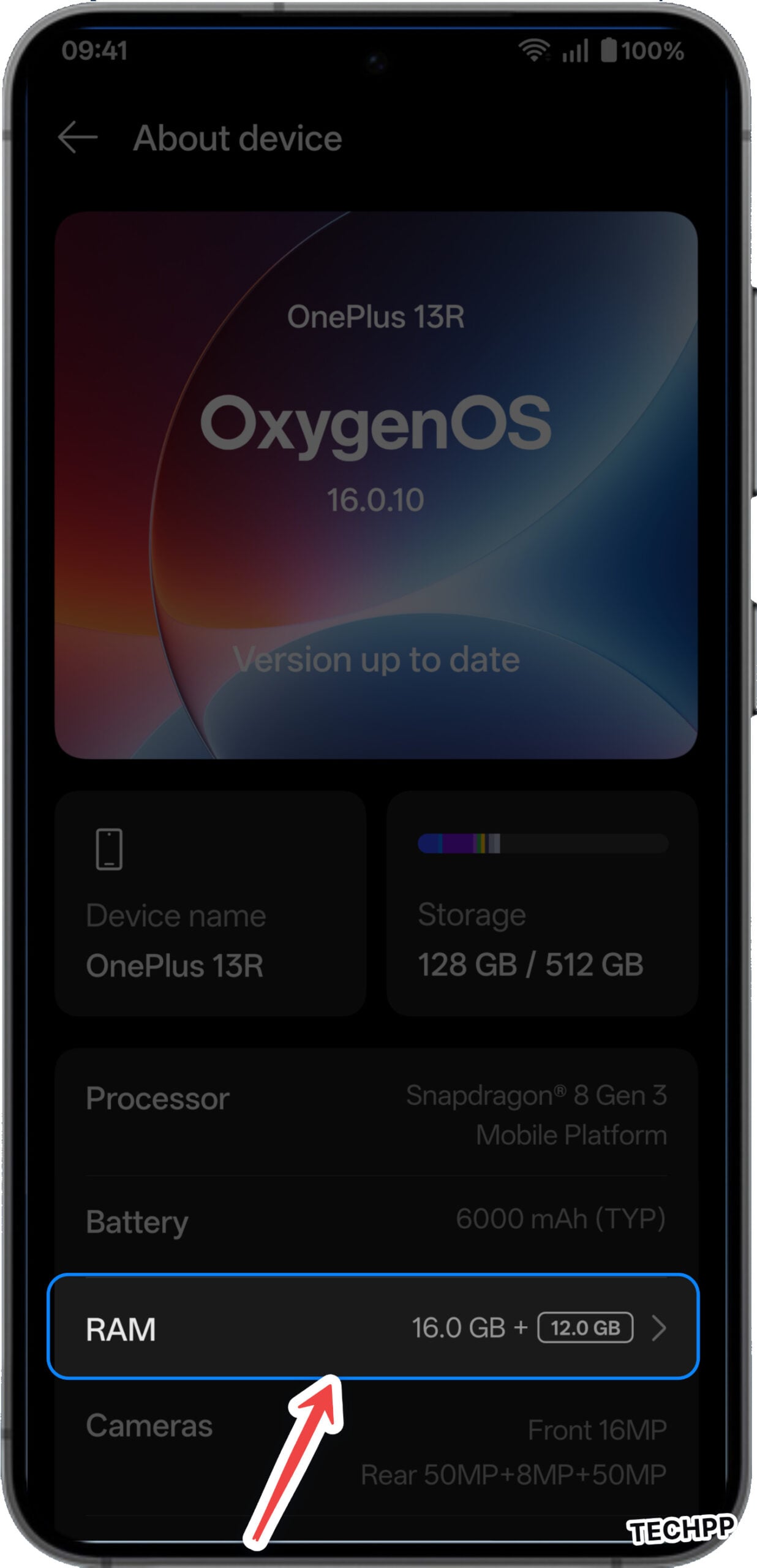
Go to About Device to see how much RAM your smartphone has. To do that: Open Settings on your device, tap on the search bar at the top, and search for “About Device”. On some phones, scroll down and tap “About Device”. Look at the RAM specifications.
On some phones, you will see extra visible RAM after the plus sign, for example, 16GB + 12GB. However, only the first number is the real memory.
Apple generally doesn’t disclose the RAM used in iPhones. However, iPhone 15 Pro and newer devices generally have at least 8GB, while older iPhones have less than 6GB, which can run 1 billion to 2 billion models. You can check how much RAM your iPhone has from here.
To check how much RAM on your MacBook: From the home screen, click on the Apple icon in the top left corner screen and tap on About This Mac. From here, you can check chip and memory options. Apple MacBooks running on Apple Silicon are especially good for running local AI models since the graphics chip shares all the memory.
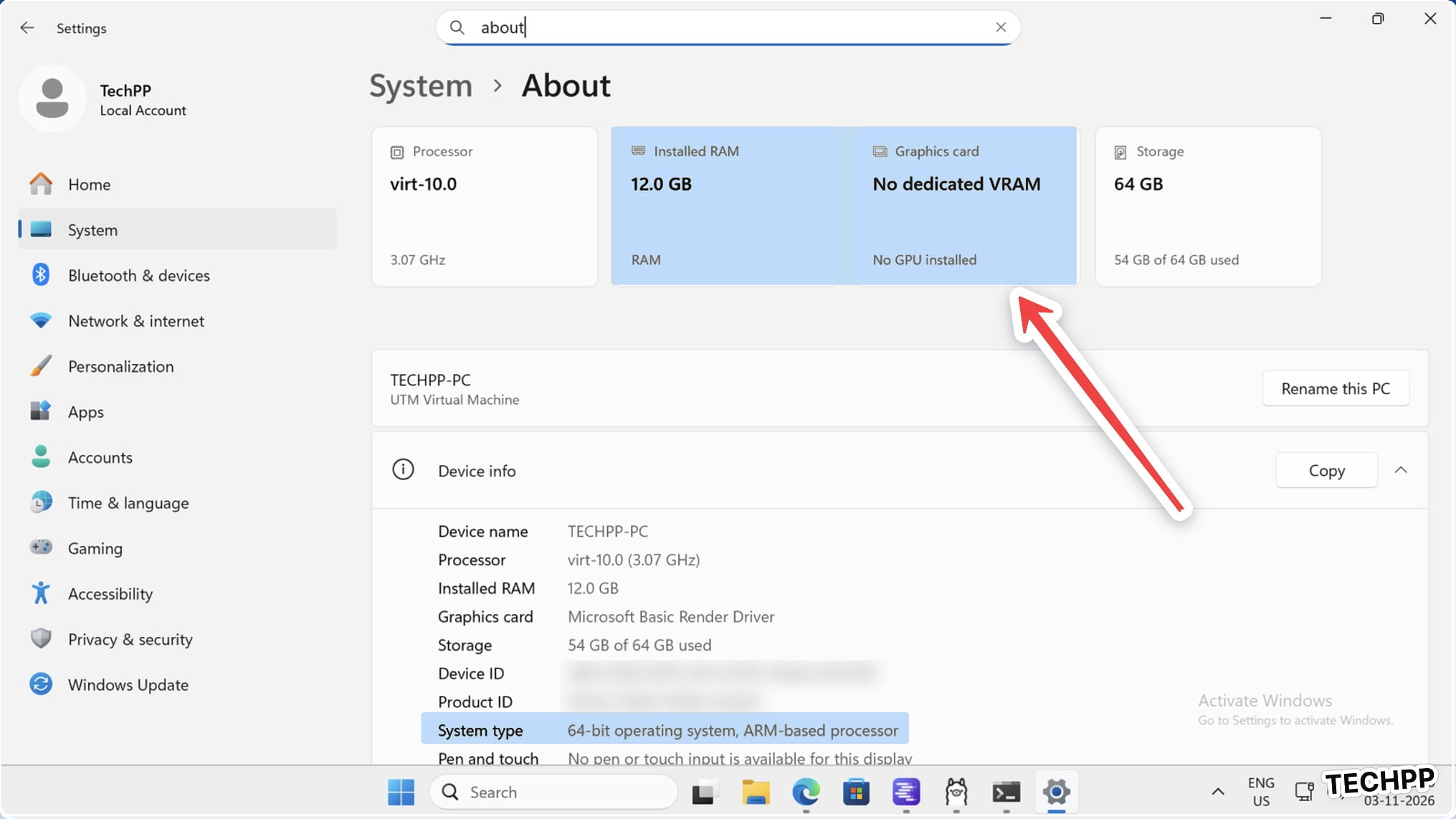
On Windows, you can go to Settings > system > About. From there, check the installed RAM, graphics card, and system type (x86 or ARM-based), which determines which applications you can download to run AI models locally.
Once your device meets the minimum RAM requirement, follow these steps to set it up to run AI models locally. Use the table of contents above to go to the device you want to set up. This guide covers Android, iPhone, Mac, and Windows.
You can run Google’s family of Open-weight AI models locally for free on your Android device using Google’s own AI Edge Gallery app (Free).
Gemma 4 is Google’s latest open-weight model. It comes in five model sizes. Gemma 4 E2B and Gemma 4 E4B are suitable for running on Android devices. 2B requires at least 8GB of RAM, and 4B requires at least 12GB of RAM.
Gemma 4 also supports vision capabilities, so it is not just text; you can also use it to understand images.
How to install and run the latest Google Gemma 4 models locally on your Android phone
Step 1: Download Google AI Edge Gallery from the Play Store. Here is the direct download link.
Step 3: Under the recommended models, tap Download below. To download the model you want. Gemma 4 E2B is 2.6 GB and best for starters, while Gemma 4 E4B is 3.7 GB and smarter, but your phone needs at least 8 GB of RAM to run it locally.
Step 4: Type your prompt in the Type prompt box and tap the send button.
Step 5: Like the other AI apps, the model replies to your prompt. You can also see how fast the model runs, measured in tokens per second, and how much RAM it uses. On my Android phone, the Gemma 4 E2B model ran at about 30 tokens per second, and my model comes with 16 GB of RAM.
PocketPal is a popular free and open-source app for running AI models locally on Android.
Unlike Google’s AI Edge Gallery, it supports a wide variety of third-party models, including Google’s Gemma, Meta’s Llama, Microsoft’s Phi, Qwen, and more. It also supports GGUF models, including compressed versions.
Step 1: Download and install the PocketPal app from the Google Play Store. Here is the direct download link.
or tap the plus option to find more. To get a new model, tap the plus icon, select Hugging Face, then tap Choose and add from Hugging Face.
Step 4: From here, you can search for any model. In this case, I searched for the Qwen3 1.7B parameter model and tapped the download icon to download it locally.
Step 5: Once done, open the Models tab and select the model to load it. Now go to the chat interface and enter the prompt, and the model uses the model that you have loaded, in this case, the Qwen3 1.7 billion parameter model, to answer your queries. You can also see how much time it takes to run this model on your device.
Google’s AI Edge Gallery is also available on iPhone and supports the latest Gemma 4 family of open-weight models, similar to Android. You can download and use E2B (around 2.6 GB) and the E4B model (around 3.7 GB).
Apple doesn’t disclose the RAM used on iPhones. However, the latest iPhone models, including the iPhone 15 Pro and later, support up to 8 GB of RAM, which can run these models faster and more reliably. However, older iPhones may struggle with slow responses, battery drain, and overheating, so keep that in mind.
Step 1: Download the Google AI Edge Gallery app on your iPhone. Here is the link.
Step 3: Now download the compatible AI model. In this case, I’m downloading Gemma 4 E2B, which is about 2.59 GB. Click on the download icon under the model.
Step 4: Wait for the model to download, then tap Try It, enter the prompt, and wait for a reply. If you want to use the vision capabilities, tap on the plus icon and upload an image
Similar to Google’s AI Edge Gallery app, the PocketPal app is also available on iPhone. It also gives access to some of the popular Hugging Face model library and other third-party models, including models from Meta, Cohere, and more. It also supports Google Gemma 4 models.
Step 1: Install the PocketPal AI app on your iPhone. Here is the link.
Step 2: Open the app, tap Download Model, select a model, and tap Download. In this case, I am downloading the Qwen3 1.7B model.
Step 3: Once downloaded, tap the Load option at the top, enter the prompt, and wait for the reply
It supports a wide range of models, including models from Google Gemma, Llama, Qwen, DeepSeek, Mistral, and more. Like the mobile app, you can install LM Studio on your Mac, download a model, and start chatting. It also supports GGUF and Apple-optimized MLX models.
Depending on the model, you can have text conversations, image analysis, and more. You can also use it as a local API for other apps.
However, LM Studio is only available on Apple Silicon Macs (M1 or later). Intel Macs are not supported.
Step 1: First, go to lmstudio.ai/download and download the LM Studio app for Mac. Select the compatible version and drag and drop LM Studio into Applications to install it.
Step 2: Open LM Studio on the Mac, click on the model search in the sidebar, and search for the model; for example, in this case, I searched for the Gemma 4 E4B model
Step 3: You can also pick a different model, select it, and click Download. A likely fit badge here means that it is suitable to run locally on your Mac using your Mac’s available memory. Once the model is downloaded, tap on Use in the new chat instead.
Step 4: On the home screen, click Load Model in the dialog and select the model. You can also raise the context length here if you are planning for long conversations.
Step 5: Now enter the prompt and press Enter. The model returns with an option. You can also click the model server in the sidebar and turn on the status to use the model for other apps via an OpenAI-compatible API at http://localhost:1234.
You can also run AI models on your Mac using Ollama. It is a free, lightweight tool by Meta that lets you run local AI models in the terminal with one command. It also works with many local apps that support local AI.
Step 1: To run Ollama locally on your device, go to ollama.com/download and click on the Download manually option. You can also directly paste the command into the terminal if you are a developer.
Step 2: Next, open the Ollama.dmg, drag it into Applications, and open it
Step 3: On the onboarding screen, while setting up an account, Ollama asks you to sign up for an account; however, you can tap on No thanks, I will use Ollama locally’
Step 4: Next, to run ollama run llama3, copy the ollama run llama3 command, open Terminal, and paste it. Wait for the model to download completely. Ollama can run Qwen3 4B parameters and other models. In this case, I am going to run the Ollama run Qwen3 4B model. So, wait for the model to download completely.
Step 5: Finally, you can start using the Ollama model right there. You can enter the prompt directly, and it will reply in the same terminal.
You can use the same LM Studio on Windows as well to run AI models locally on your device
Step 1: Download and install LM Studio for Windows. Here is the download page link.
Step 2: Open the LM Studio app and, in the left sidebar, tap Model Search and search for the model you want to run locally. In this case, Iam using Qwen3 1.7 billion parameters; on the model details page, click the download option.
Step 3: Wait for it to download, and once it has downloaded, tap on Use in new chat
Step 4: Now, on the home screen, in the model box, select the downloaded model. You can tap on the model to select and enable it, then enter the prompt and press enter.
Ollama is also available on Mac. It supports NVIDIA and AMD graphics cards, as well as the latest ARM-based Snapdragon PCs. You can download models and use them directly from the terminal. Here is how.
Step 1: First, download Ollama on Windows. Go to ollama.com/download/windows and click Manual download. If you are a developer, you can install it directly in PowerShell using the PowerShell command.
Step 2: Now install the Ollama app on Windows. While setting up, click Continue, and then tap on No thanks, I will use Ollama locally, so you can skip creating an account.
Step 3: Next, copy the command shown in the app, open Terminal, and run this command: ollama run qwen3:1.7b, and press Enter. It downloads the model. Wait for the download to complete.
This is how you can set up and run AI models locally on Android, iPhone, Windows, and Mac. Choosing the right model is important to get high-quality output. Bigger models don’t always mean better outputs, as their capabilities can vary. Our guide to the best AI models to run locally should help you choose the right model for your needs. If you have any issues setting them up, feel free to comment below, and I’ll be happy to help.