
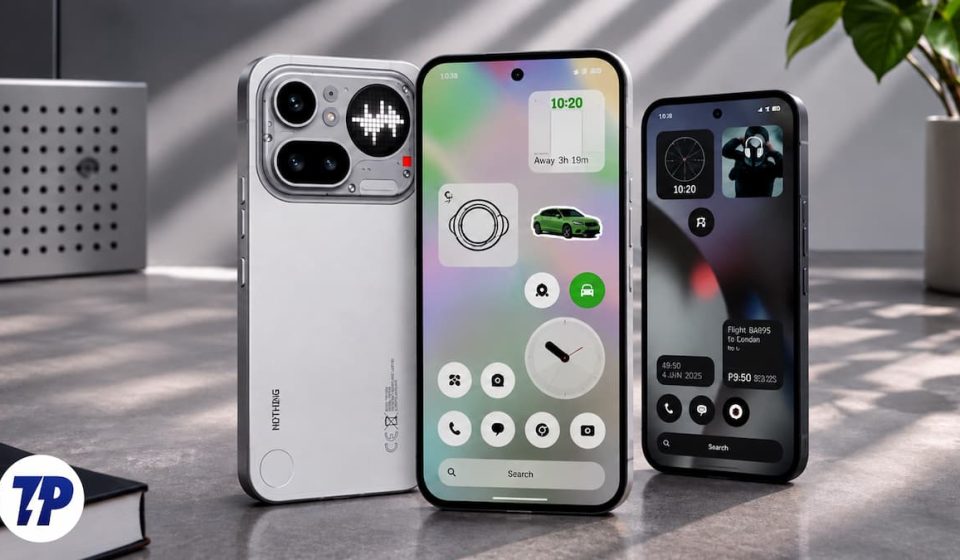

The topic Updated to Nothing OS 5? Try these 11 super cool new features is drawing steady attention: readers, analysts, and industry watchers are all tracking how the story may unfold in the days ahead.
This is taking place in a fast-moving context — product cycles, platform shifts, and competitive moves can reshape the outlook quickly, so the details below are worth a careful read.
What follows is a clear walkthrough of the main facts and angles you need to make sense of the news.
Nothing has updated all of its eligible devices to the latest version of its operating system, Nothing OS 5. It runs on top of Android 17, and in typical Nothing tradition, is clean and uncluttered. And while it might seem broadly similar to its predecessor, there are a number of interesting new features – some important, some seemingly trivial – beneath that familiar surface. So if you have a Nothing phone and it has received the Nothing OS 5 update (there is a list of supported devices with rollout timelines here: https://in.nothing.tech/nothing-os), here are eleven things you must try out.
One of the biggest innovations of the Nothing ecosystem was the introduction of Essential apps that let users, even with no coding knowledge, make widgets. In the past, you had to access Essential Apps on a computer to be able to make these widgets. Now you can do so right on your phone. And it is as easy as easy peasy apple squeezie. Mind you, you still need to sign up for Essential Apps and be part of a waiting list before you can get into design mode. No download is needed – the Essential Apps app comes to your Nothing phone when you update the phone to Nothing OS 5.g
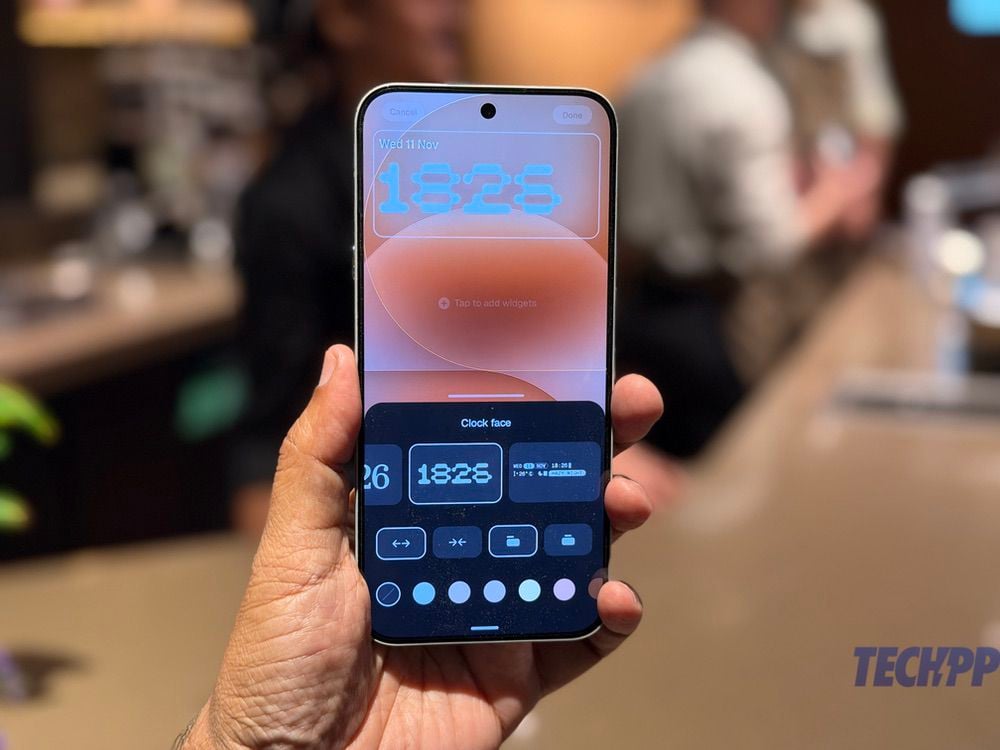
On to the really serious stuff now. Perhaps the most noticeable visual change in NothingOS is the addition of two lockscreen clock widgets – Gooey and Micrographics. The Gooey clock has a bold and fluid look, with numbers looking a little melted. It is very eye-catching and, well, different. Those who want a truckload of information on their lockscreen and who opt for Micrographics get details like day, date, weather, temperature, upcoming appointments, and, of course, the time, all in rows that give it a very business ticker feel. This is how you clock into this feature:
Our own preference is the Micrographics widget, which is incredibly handy. We hope they add email and other notifications to it as well.
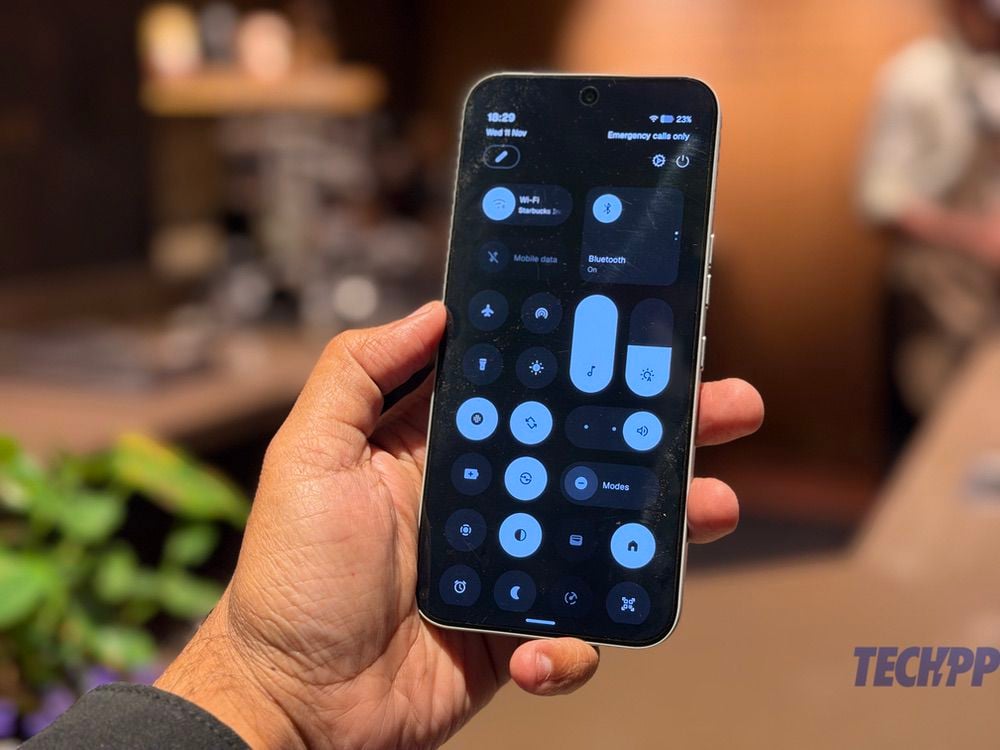
In the past – as on many phones – swiping down on a Nothing phone showed one new notifications, and swiping further down gave one access to Quick Settings (Wi-Fi, Bluetooth, Brightness, Torch, et al.). Well, you can split them into two separate zones if you wish. Once done, swiping from one side of the top will give you access to Quick Settings, while swiping from the other will show notifications. To do this segregation, just follow these steps:
One of the coolest new widgets on Nothing OS 5 is the Away Time widget, which lets you know how long you have kept away from your phone, and shows it in a simple, clean widget that can be placed on your home screen or your lock screen. It is a nice way to know about the “me time” you have given yourself away from your phone. Getting it is as easy as pressing on any place on the lock screen or Home Screen, and then selecting the Away Time widget option. We suggest going for the larger (4 x 2) one because it just looks so much better, especially with that zen-like blue background.
Another widget (yes, Nothing seems to really like them widgets) that is very handy is Collector. You just open it and place images of what you want to keep seeing or consider important in it, and it automatically cuts out what it sees as important and keeps it handy on the home screen. It has a wonderful fridge sticker vibe, and keeps what matters close at hand. Just long-press on the home screen and select it from the widget collection!
The Glyph Interface has been one of the most eye-catching features of Nothing’s phones. This is basically a collection of LEDs on the back of the phones that light up in different patterns, showing notifications and battery levels, letting you know who is calling, controlling volume, setting timers, and doing more, all on the back of the phone. There was a catch, though. The Glyph UI had to be controlled from the settings of the phone, which seemed to be a rather roundabout way of doing things. This has now been fixed with the Glyph app, which gives one direct access to the Glyph Interface, letting one tweak it without having to get into the Settings. No downloads needed – the Glyph app appears on your Nothing phone the moment you update it to Nothing OS 5.
Nothing OS 5 gives you the option to shoot videos using the rear as well as the front camera simultaneously. One can choose from having the footage one below the other, or having the selfie camera in an inset and the main camera in the larger part of the display. To access the option:
It would have been nice to be able to take some stills with this feature, but as of now, it is limited to video.
Yep, your Nothing phone is now on the glass UI bandwagon. Mind you, this option is not turned on by default. You will need to follow these steps:
This is a pretty minor and yet handy change in Nothing OS 5. While camera icons have all been polished, a tiny yet useful tweak is in scanning QR codes, especially when using the scanner in crowded places or in slightly wobbly situations (think of paying in a moving vehicle). Now, when you use the camera to scan a QR code, the link it leads to remains on the screen, even if your hand moves and the QR code goes off or the code itself wobbles a little. So scanning codes is a whole lot easier, and you don’t have to bother about lining up the camera with the QR code all the time.
With Nothing OS 5, sending images to iPhones is pretty easy. Here’s how you do it:
Nothing’s marketing communications look very distinct because they use a font called Geist. Well, with NothingOS 5, you can now use Geist as the default font on their Nothing phones. This is how one does it: