
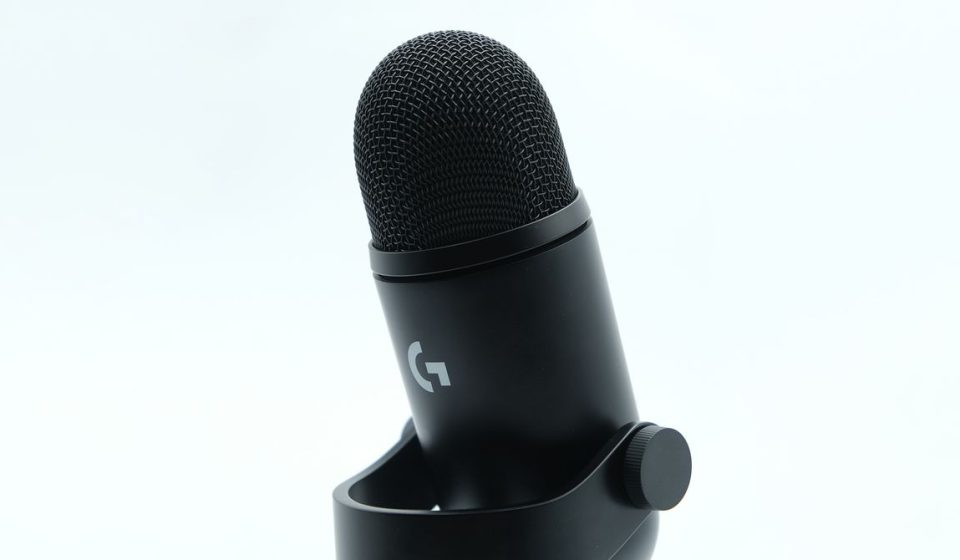

The topic Logitech Yeti 2 Review: An All-In-One Studio Setup is drawing steady attention: readers, analysts, and industry watchers are all tracking how the story may unfold in the days ahead.
This is taking place in a fast-moving context — product cycles, platform shifts, and competitive moves can reshape the outlook quickly, so the details below are worth a careful read.
What follows is a clear walkthrough of the main facts and angles you need to make sense of the news.
The original Blue Yeti microphone was first released in 2009, and it remains the most ubiquitous microphone for home recording 17 years later. Chances are, if you’ve watched a YouTube video, Twitch stream, or listened to a podcast, you’ve heard (and probably seen) this microphone at least once.
Long after absorbing Blue and phasing out the brand name, Logitech has finally released its highly anticipated successor: the Yeti 2. The follow-up maintains the same general shape and look but drastically changes the microphone’s functionality. Instead of simply recording audio, the Yeti 2 has a handful of features to monitor and manipulate the audio passing through it, seamlessly recording production-quality audio with zero delay. While some of the design feels a bit underdeveloped, the Yeti 2 is a deserving sequel to the iconic original model and an easy shoe-in as the best USB microphone you can buy.
The Yeti 2's biggest upgrades stares you directly in the face after taking it out of the box. The built-in screen and dial allow for on-the-fly adjustments right on the microphone. No software required. While I was a skeptic at first, I quickly found this little screen to be significantly more convenient than the alternative. It can be used to adjust gain, enable different post-processing settings, and configure the sound profile of the microphone.
More importantly, the screen can quickly provide insights into audio quality at a glance. The main screen shows a graph of the gain-adjusted input volume, which is what the microphone is sending to your computer. It can also display a histogram of volume over time, a pattern to show what direction input is coming from, or … a pixel-art Yeti. This little guy looks confused when you’re quiet, happy when you’re talking at a normal volume, and alarmed when you’re too loud for the microphone to handle. Within the G Hub app, the icons can be swapped out with any of Logi’s other premade avatars (a dragon, flower, frog, or jellyfish), or freely customized with your own images using a simple drag-and-drop menu. This is the least functional feature of the microphone, but it’s an endearing and intuitive way to indicate audio quality at a glance.
The screen also has quite a few adjustable menus for different features, including a de-noise function with four levels, five EQ presets, a pattern customizer with eight default options, and a multitude of toggleable settings to clean up and improve recording quality. While the settings can’t be customized using the screen, the G Hub application provides more in-depth adjustments for how intense each of these settings are, along with explanations of how they work and when to use them.