

The topic 5 ways to get the most out of the new Siri is drawing steady attention: readers, analysts, and industry watchers are all tracking how the story may unfold in the days ahead.
This is taking place in a fast-moving context — product cycles, platform shifts, and competitive moves can reshape the outlook quickly, so the details below are worth a careful read.
What follows is a clear walkthrough of the main facts and angles you need to make sense of the news.
Siri has finally had a major upgrade, and with the new Siri AI, you can do a lot more. Here’s some of the best ways to use it.
Siri has been around for a long time, first appearing as part of iOS on the iPhone 4S way back in 2011. Initially, Siri was very impressive, allowing you to perform actions such as setting timers or sending messages with your voice, running specific skills, and even finding your lost phone. As technologies moved on, Siri mostly stagnated, with some of us choosing to turn Siri off. However, Siri has now had a major upgrade on iPhone 15 Pro models or later, and there’s now a lot more you can do with Apple’s personal assistant.
Siri now has on-screen awareness, which lets it see what’s currently displayed on your iPhone or Mac. This is one of the most useful new features, because it opens up a world of possibilities that can make it far easier to achieve your goals.
for example, you might get a message from a friend inviting you to a party, with an image of an invitation that they’ve made that shows the date, time, and location of the party. In the past, if you wanted to add the party to your calendar, you’d need to copy all of that information into a new event.
With the new Siri, all you need to do is say “Siri, add this to my calendar.” Siri will look at what’s on the screen, extract the details of the party, and create a new calendar event containing those details. You’ll then get a confirmation showing you the newly created event.

On-screen awareness can be truly impressive. If you have a photo of a location, for example, you can ask Siri where it is. It will try to identify the location from the image, and if it does, you can tap the Maps icon to instantly open directions to get there.
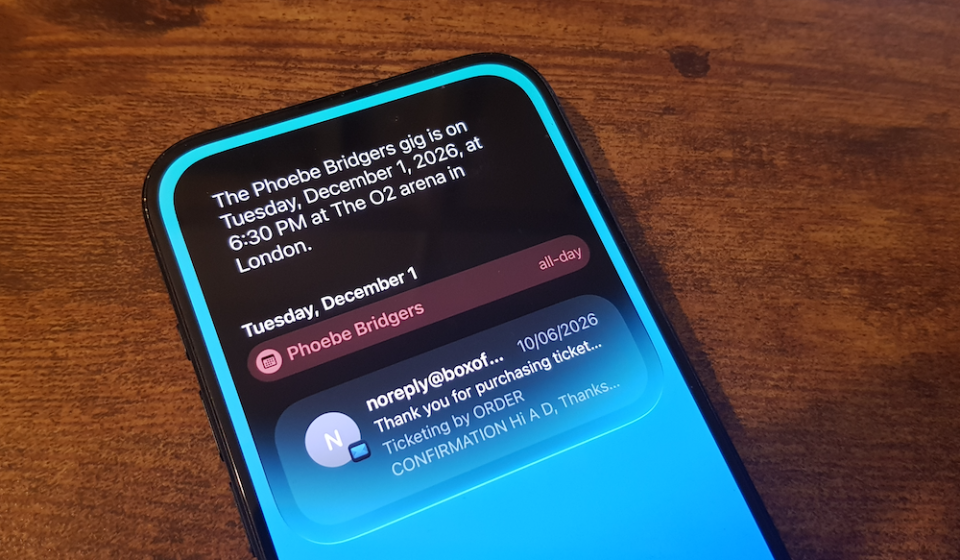
A personal assistant isn’t much use if it doesn’t know anything about you. The new Siri has a far better understanding of the information on your phone, making it a much more useful assistant. Siri can access information from emails, messages, photos, your calendar, and more.
This allows Siri to do things that can be real timesavers. for example, you can say things such as “Siri, what’s the check-in time for our Airbnb next week?” and Siri will find the relevant email, extract the check-in details, and tell you what time you can check in.
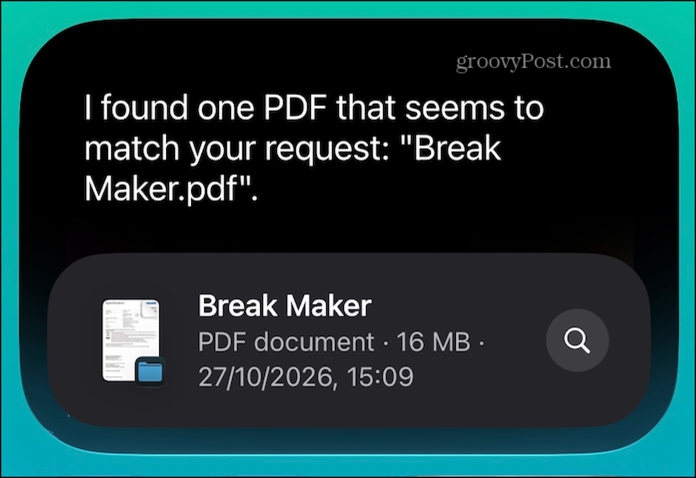
Another major benefit is that you can use this feature to search your phone and find what you need far more quickly. If you’ve dumped files of all the instructions for your appliances on your phone, for example, you can say, “Siri, find the PDF of the bread maker instructions,” and Siri will pull up the file you need. You can also use Siri to quickly find specific photos based on a description.
Siri is no longer limited to performing actions in one app at a time. You can now ask Siri to do things that involve multiple apps. Instead of having to open several different apps to complete a task, Siri can do it all for you.
for example, if a friend has sent you some birthday present ideas for their kids in a message, you might open Messages, copy the section of the message that includes the list of ideas, and paste them into a new note in the Notes app. With Siri, you can just say, “Siri, add the gift ideas from Susan’s message to a new note called Gift Ideas,” and Siri will do it all for you.
If you took a photo of a sweater you thought would look great on a friend, you could say something like “Send that full-length photo I took of a sweater yesterday to Susan, with a message saying: This would look great on you!” Siri will then create the message and ask you to confirm that you want to send it.
You can ask Siri questions or get it to perform actions based on what’s visible on your phone screen, but you can also do the same for the world around you. Visual Intelligence allows Siri to see the world through your camera.
Visual Intelligence isn’t new, but it’s now fully integrated into the native Camera app. Along with options such as Photo, Video, and Panorama, there’s also a camera option called Siri. Using this camera setting, the camera shutter button becomes the Siri logo.
When you press this button, whatever is visible through your camera is passed to Siri. Siri will automatically provide some information about what it sees, such as giving you the name of a product visible through the camera or identifying the landmark you’re capturing.
There are then two useful buttons you can use. On the left is a speech bubble button, and if you tap this, you can ask Siri another question about the image. for example, if you are pointing the camera at a particular flower, you can ask Siri what type of plant it is.
The other button has a photo icon, and you can use this to find online images that are similar to what your camera sees. If you’re pointing at a game controller, for example, Siri can find other images of similar controllers. More importantly, you can find shopping links for sites selling the same controller that’s shown on your camera.
This feature is perhaps the most impressive, because it takes something that could be challenging to do and makes it incredibly simple. The Shortcuts app has been around for some time, allowing you to put together a series of actions that run on your iPhone. for example, I have a shortcut that runs three times a day, gets the current weather conditions, generates an image of my current location in those weather conditions, and displays it as a widget on my Home Screen.
Building these shortcuts can be very complicated, which has discouraged a lot of people from using them. However, you can now get Siri to do all the hard work for you. When you tap the button to create a new shortcut now, all you have to do is describe what you want the shortcut to do. Siri will then create the shortcut from your description, so you don’t have to assemble any of it yourself.
Siri had stagnated for so long that it had become something of a laughing stock. If you haven’t tried out the new Siri AI yet, then it’s worth giving it a try, because Siri is genuinely useful once again.
Your email address will not be published. Required fields are marked *
Save my name and email and send me emails as new comments are made to this post.