

The topic Android Phone Battery Draining Fast? These 15 Tips Helped Me Fix It is drawing steady attention: readers, analysts, and industry watchers are all tracking how the story may unfold in the days ahead.
This is taking place in a fast-moving context — product cycles, platform shifts, and competitive moves can reshape the outlook quickly, so the details below are worth a careful read.
What follows is a clear walkthrough of the main facts and angles you need to make sense of the news.
I cannot function without my phone. It makes my experience better during my walks, jogs, and all other activities throughout the day. Unfortunately, I have to charge my phone multiple times a day or keep a power bank as a backup, just in case. The ease created by my Android phone is instantly undone by the quickly draining battery. Along with the phone, I should carry a cable, an adapter, and a power bank.
In that frustration, I started looking into why my Android phone battery was draining fast. I checked the battery usage data, identified what was causing the drain, and fixed those issues. Now, my battery lasts longer. These are the tips that helped me improve the battery life on my Android phone.
I used these tips to improve my Android phone’s battery life on a single charge. You can use the tips that work for you without sacrificing the functionality you need.
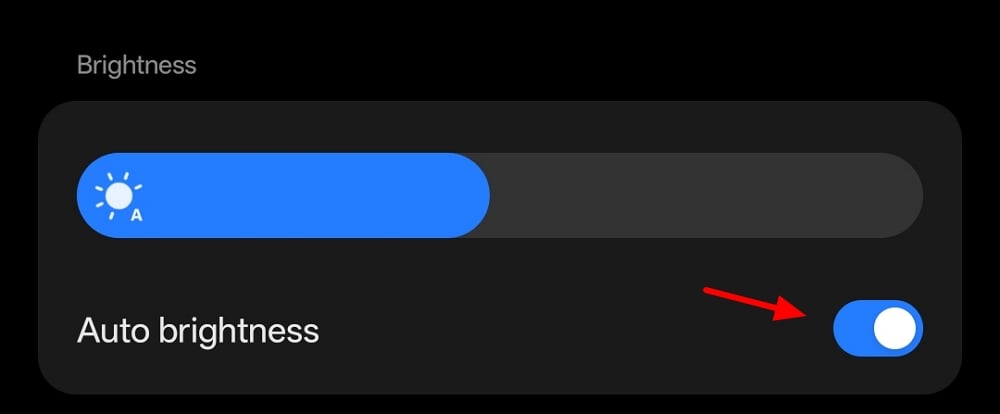
Brightness affects how visible the display is, irrespective of the light in our surroundings. When we keep the brightness too high, it affects our eyes in the dark. In addition to that, the battery drains too quickly when powering the high brightness for your phone’s display.
If we keep the brightness low, it affects the visibility of our phone’s display during daytime when we are out in the open under the sun. To not affect the visibility and save the battery from draining quickly, we can enable Auto Brightness on our phone.
The auto-brightness feature on our phones adjusts the brightness of our display based on the light in our surroundings. for example, when you are outside where there is abundant sunlight, the auto-brightness feature increases the brightness to make visibility better for you. Similarly, it decreases the brightness when you are in a dark or dimmed environment.
To enable auto-brightness on your phone, open the Settings app and go to Display or Display & brightness settings. The jargon for options varies by manufacturer.
Find Brightness options and toggle the button beside Auto brightness to enable it. You will see the brightness of your screen increase or decrease as per your environment in real time.
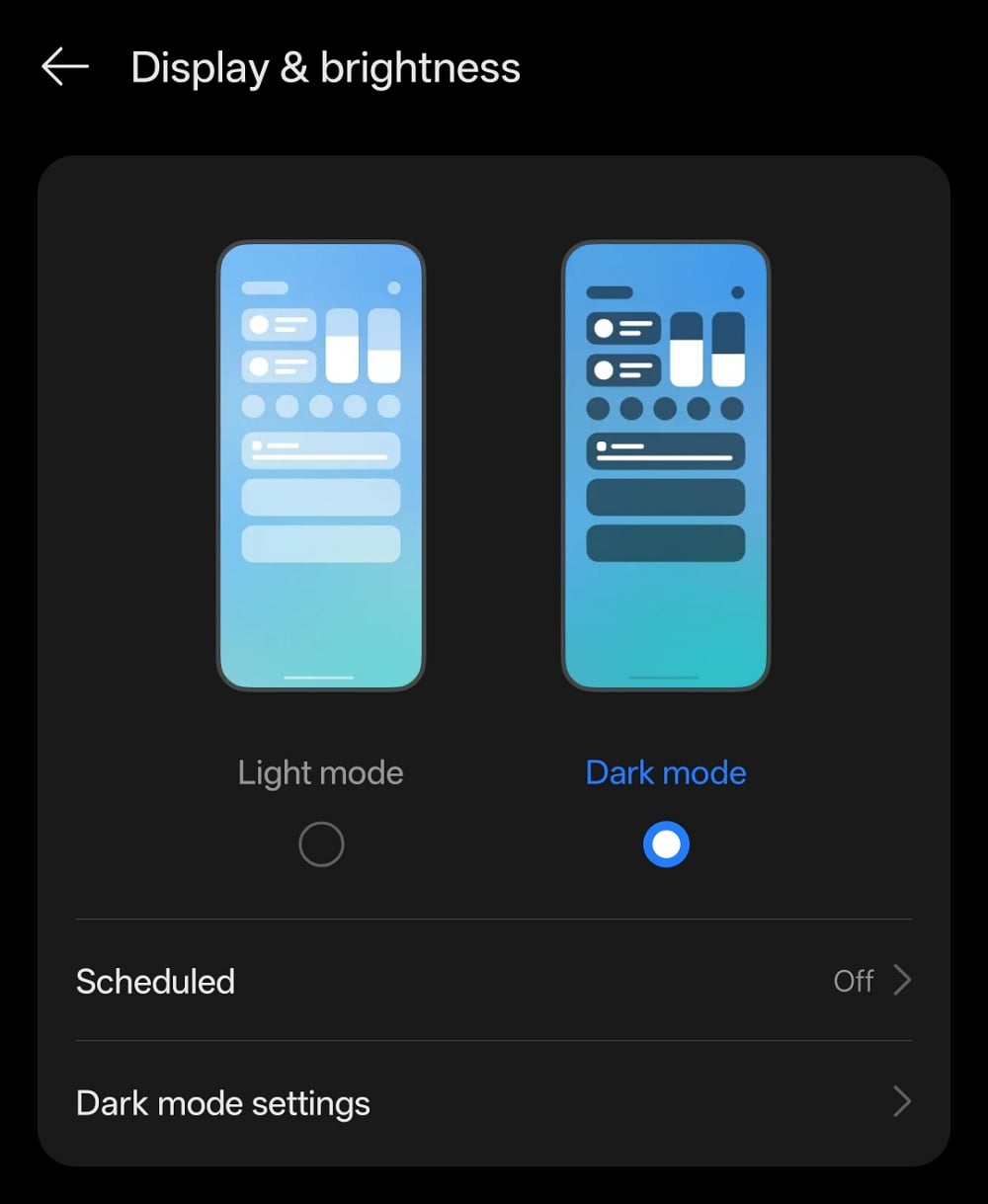
Android phones with OLED or AMOLED displays consume more power for display. If it is set to light mode, a major chunk of battery life goes to power. Setting the screen to dark mode makes it easier on the battery. The battery does not need to power the entire display by switching off the black pixels.
You can enable dark mode in the display settings of your phone. Open the Settings app and find the display settings. Set the display mode to Dark mode.
Dark mode, at first, may look odd. Once you get accustomed to it, there is no going back.
Always-On Display consumes a significant amount of power from the battery. The display always shows time or notifications even when you are not using the phone actively.
You must disable the Always-On Display feature if you do not have any use for it. Open the Settings app on your Android phone and search for Always-On Display. It will show the option. Tap on it. Toggle the button beside Always-On Display to turn it off.
It may not reduce battery drain noticeably, but small things like these can help optimize battery life.
The screen refresh rate feature on Android gives us a smoother display experience. Manufacturers flaunt the screen refresh rate while launching and advertising new smartphones. The higher the refresh rate of a screen is, the more battery it consumes. If you are not a gamer or do not use your phone for experiences that demand a higher refresh rate, you may set the Screen refresh rate to Auto.
Open the Settings app on your phone, search for refresh rate, and open the refresh rate options. Then, set the refresh rate to Auto or Auto-select. Instead of using a higher refresh rate that consumes more battery, your phone now optimizes the screen refresh rate based on the app or activity for a smoother experience. You may also set it to Standard or anything that offers a 60 Hz refresh rate to extend battery life.
Screen off time is something we mostly overlook when looking to optimize battery on our phones. If the screen off time is set to a longer time, it consumes battery and aids in draining faster. Small things like these add up and drain the battery.
Open the Settings app on your phone and search for screen off. You can find the Screen off feature in Display settings. Tap on the Screen off or Auto Screen off options (based on your manufacturer) and select a shorter time.
Now, when you do not use the phone, the screen will be turned off as per the time you have selected. The shorter the time, the more you optimize the battery.
Sound and vibration for ringtones and notifications are okay. But touch vibrations, keyboard sounds, dial pad tones, lock sounds, and other such sounds or vibrations when we do something on our phone are not necessary. They stress the battery and make it drain faster.
Disabling those unnecessary sounds and vibrations enhances the battery life and saves you from charging the phone frequently.
Open the Settings app on your phone and go to Sound & vibration settings. Go to More sounds (on OxygenOS) or similar settings where you can enable or disable additional sounds, based on your manufacturer.
Then, disable the sounds that you feel are unnecessary by toggling the buttons beside them.
This can optimize battery life, and you can notice the difference within a few hours. Additionally, you can tweak the vibration intensity to optimize your battery further regarding sound and vibration settings.
Android provides detailed battery data where we can see which app is consuming more battery, how long each charge lasts, etc. Using the battery data, we can optimize the apps that consume a lot of battery or install alternatives that consume less battery.
We can access the battery data through the Battery settings. Open Settings and go to Battery settings on your device. Scroll down to the Battery usage by app section in the Battery settings and see which app is using more battery. Tap on the app that is consuming a lot of battery.
It opens the detailed view of battery consumption in the last 24 hours. You can also see options to control battery consumption for the particular app by restricting background activity, etc. Select Restrict background activity if you want to optimize battery and extend its life.
If you want the app to run in the background, you can set it to Smart mode if your manufacturer provides such an option. Repeat the process until you restrict all the power-hungry apps on your device. This significantly improves the life of your battery in each charge.
In the Battery settings, you will find Power saving settings or options. Go to Power saving settings and toggle the button beside Automatically enter Power saving mode. Then, set the battery percentage that should trigger the power saving mode on your device.
Your device will enter Power saving mode when it triggers the battery percentage you set, and it will last longer.
You might have noticed your phone battery drains quicker than normal when you pair Bluetooth devices or use location actively. It is better to turn them off when you do not use them.
Keeping WiFi, mobile data, location, and Bluetooth on, even without any usage, consumes a good amount of battery. When you are not actively using any of them, turning them off saves you some battery.
There are many features that we rarely use, but consume a good amount of battery. They are live wallpapers, widgets that we do not use, opening web pages and leaving them running in the background, manufacturer apps that run automatically, etc.
Disabling or turning them off saves us a lot of battery. In addition to them, when we install a new app, it asks for notification permissions, location permissions, etc. Disabling notifications for unimportant apps also saves our battery from draining quickly.
These tips, when used together, will optimize your Android device’s battery and extend its life in each charge cycle. Even after doing all this, the battery may drain quickly due to deteriorated battery health. Let’s see how to check and optimize battery health on Android.
The battery on our Android phone degrades with use, and the health drops from 100% to lower levels. The lower the health of your battery, the less power it stores. The capacity keeps on degrading. This is not limited to iPhones. Android phones also started showing battery health. It depends on your manufacturer.
To check the battery health on your Android, you can use third-party apps like Battery Guru or AccuBattery. You may use the app of your choice too, if your manufacturer does not provide an option to look at your battery’s health.
To expand the life and usability of our Android phone, we need to preserve the health of the battery. If not, we may have to replace the battery or the phone altogether. You can preserve the battery health on Android by following these simple tips.
Android phones let us set a custom charging limit to preserve battery health and protect it from fast degradation of capacity. Manufacturers recommend setting the charging limit to 80- 90% and not beyond that. Charging our phone up to 100% every time is actually not recommended by manufacturers.
We always need to make sure our phone battery never falls below 10% or charges beyond 90%. You can set a custom charging limit in the Battery settings of your phone.
Open the Settings app on your phone and search for Battery health. Open the Battery health options. Toggle the button beside Custom charging limit. Then, set the limit as per the recommendations of the manufacturer.
These options may vary based on your phone manufacturer. The options remain the same, but the wording may change. Follow accordingly to set a custom charging limit.
After setting the custom charging limit, your phone will never charge beyond that percentage. If your manufacturer offers Smart Charging, Adaptive Charging, or Smart Charge options, you may even enable them to let them implement charging patterns based on your charging habits.
Charging phones with the available charger is bad for our device’s battery. We must get an adapter and cable made by the manufacturer to save the battery. If they are not available, we must ensure we get charging accessories that are compatible with our device from trusted brands.
Before getting a new charger for your phone, look at the specifications of your device and get the adapter and cable that support the power specified for your device.
Batteries degrade faster when they overheat or are exposed to heat. Do not expose your phone to direct sunlight or hot areas. Do not use your phone for heavy activities like gaming while it is charging.
Phone manufacturers recommend certain settings to preserve battery health and extend its life. They can be found under the options provided in the Battery settings or the Battery optimization app provided by the manufacturer.
Follow those recommendations strictly to save your battery from degradation and faster draining.
It is not a wise choice to ignore installing pending updates. Android phones get monthly security updates and software updates regularly. We need to make sure they are installed automatically.
If you notice the battery of your Android phone is draining fast, you need to make sure there are no apps running in the background. Limit app activity in the background, update apps, turn off features that you do not use, install updates, and fix all the issues that are contributing to fast battery drain.