
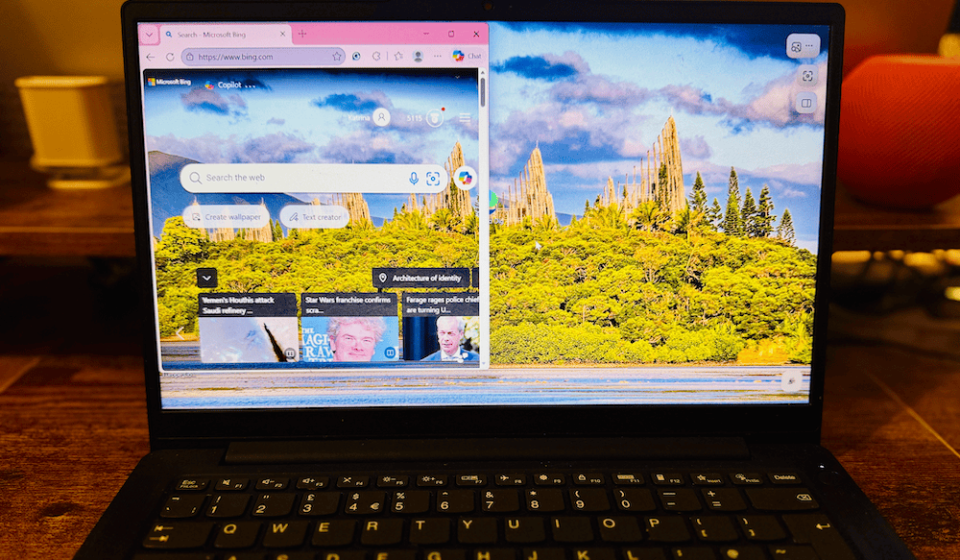

The topic How to set Bing daily wallpapers on Windows 11 (desktop and lock screen) is drawing steady attention: readers, analysts, and industry watchers are all tracking how the story may unfold in the days ahead.
This is taking place in a fast-moving context — product cycles, platform shifts, and competitive moves can reshape the outlook quickly, so the details below are worth a careful read.
What follows is a clear walkthrough of the main facts and angles you need to make sense of the news.
Are you fan of Bing’s daily backround images? If so, here’s how to set Bing daily wallpapers on your desktop or lock screen on Windows 11.
Setting an appealing image as your computer’s wallpaper or screensaver is a simple way to make it look better instantly. Over time, the same old wallpaper can get boring, so you might prefer it to change automatically. One simple option is to set up your Windows 11 computer to display automatically changing wallpapers on your desktop or lock screen.
If you use the Bing search engine, you’ve seen many of these stunning images. Every day, the background image on the Bing home page updates with a new image. These background images include stunning photos from around the world.
As well as looking beautiful, these backgrounds are also informative. You can click on a link to learn more about the theme or subject of the image or use the arrows to look back through images from previous days if you missed them. You can even download the image to use as your wallpaper.
If you’re a fan of these Bing wallpapers, you don’t need to be restricted to using the Bing search engine. You can enjoy using your search engine of choice and still have the stunning wallpapers appear on your Windows 11 PC.
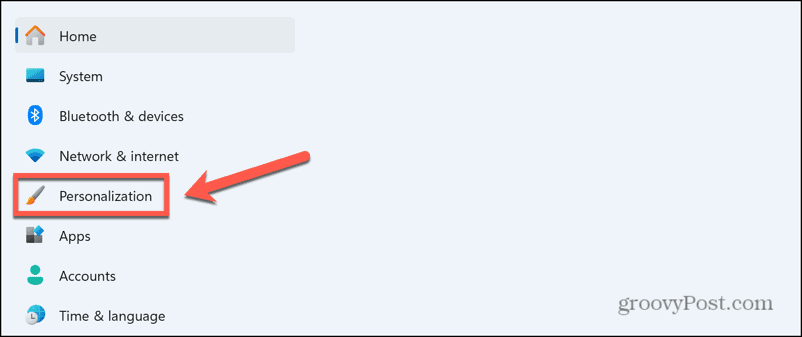
One of the easiest ways to display similar daily images on your PC is on the lock screen. You don’t need any additional software; the native Windows 11 Spotlight feature can automatically display a rotating selection of Microsoft images as your lock screen background. The image changes regularly, so you always have a fresh lock screen wallpaper.
You’re not just limited to displaying Bing’s daily wallpapers on your lock screen. You can add them to your desktop, too. There are a couple of ways you can do so.
The first is to use the same Windows Spotlight option that you can use to show the Bing daily wallpaper on your lock screen. This will make your desktop display a rotating Windows Spotlight image. If you choose Windows Spotlight for both the lock screen and desktop, you might expect both to show the same image, but this isn’t the case. You may see a different wallpaper on your desktop than on your lock screen.
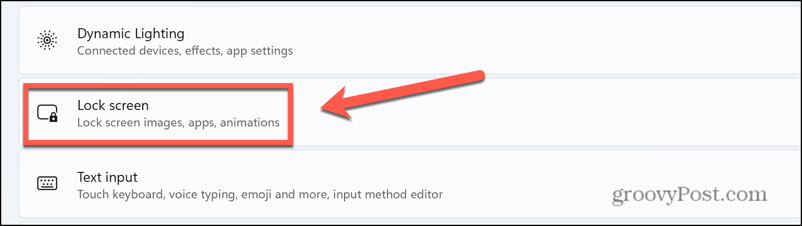
Using Windows Spotlight to provide your wallpaper works fine, but it doesn’t give you as much control. You can switch to another Spotlight image, but your options are limited. Your desktop wallpaper will also not match the daily wallpaper shown on the Bing home page.
If you want more control over which Bing wallpaper you can display, including access to daily wallpapers from previous days, you’ll need to install the Bing Wallpaper app. This gives you a dedicated interface to browse previous images and uses the current image of the day by default. It’s also available on older versions of Windows, with support for Windows 10 version 0.0 or higher.
If you’re using the Bing Wallpaper app, you can learn more about the image of the day by clicking the widgets on your desktop. You may get some of the same functionality with the Windows Spotlight option, depending on which Windows 11 build you’re running.
Even when you find a desktop or lock screen wallpaper you love, looking at it every day can soon get boring. Using the Bing wallpapers means that you get a new, high-quality image every day, so your desktop never feels stale.
Your email address will not be published. Required fields are marked *
Save my name and email and send me emails as new comments are made to this post.